

Filed under LMS & Platforms
LMS migration may look simple on a vendor’s slide: export, import, go live. In practice, it’s where completion records go missing, certificate expiry dates reset, and SCORM courses that tracked perfectly for years stop reporting overnight. Most L&D teams only find these problems after the old system is switched off.
This guide is a playbook for planning and running an LMS migration from start to finish. It covers:
- What to migrate and what to leave behind
- A realistic phase-by-phase timeline
- A field-level data-mapping template
- A testing checklist
- Mistakes practitioners say they wish they’d caught earlier
Short on time? Jump to the phase-by-phase plan.
Updated November 2026.
In This Article
What is an LMS Migration?
LMS migration is the process of moving your learning data from one learning management system to another. That data includes users, courses, completion records, certificates and integrations. It’s run as a structured project with four stages: audit, data mapping, testing and cutover.
An LMS migration covers both the content in your LMS (courses, SCORM packages, assessments) and the history behind it (who completed what, when and with what score). For compliance-heavy organizations, that history matters as much as the courses.
Note: this guide covers learning management systems. In UK conveyancing, “LMS” is also the name of a conveyancing services company, which is a different topic.
LMS Migration vs. LMS Implementation
LMS implementation sets up your new LMS: configuring the platform, branding, user roles and integrations. LMS migration moves your existing data and content into it, then retires the old system.
Most projects need both, but they carry different risks. Implementation problems are usually visible straight away, such as a broken login or a missing menu. Migration problems often surface months later, for example when an auditor asks for a completion record that never transferred.
When Should You Migrate? Signs and the Business Case
Few L&D teams migrate because they want to. Usually something forces the decision: a renewal date, a missing capability or a platform that has stopped keeping up. These are the most common signs it’s time to move:
- Your contract is up for renewal. This is the natural decision point. Start evaluating 9–12 months before the renewal date, because an LMS migration rarely fits into the final quarter.
- Learners avoid the platform. Low logins, abandoned courses and “where do I find…” tickets mean the experience is costing you engagement.
- You’ve outgrown the features. Common gaps are skills mapping and tracking, AI-assisted content, xAPI reporting, mobile learning solutions, and support for external audiences such as customers or partners.
- Integrations are held together by workarounds. Manual CSV uploads from your HRIS, broken SSO or no link to your webinar and content tools.
- Costs keep rising. This includes per-user pricing that penalizes growth, paid add-ons for basic features and admin hours spent on workarounds.
- The vendor is winding down. End-of-life notices, an acquisition or a slowing release schedule all put your data at risk if you wait.
Building the Business Case
Leadership will approve an LMS migration when the cost of staying clearly outweighs the cost of moving. Put both sides on one page.
Cost of staying: licence increases, admin time on workarounds, lost productivity and compliance risk from poor reporting.
Cost of moving: new licences, migration labour, content conversion, a period of paying for both systems, and change management.
Then commit to 3–5 measurable outcomes and report on them after go-live. They also become the baseline for proving the eLearning ROI of the new platform. Good ones are:
- Active learner rate
- Course completion rate
- Admin hours saved per month
- Time to produce audit-ready compliance reports
- Total cost of ownership over three years
The 4 Types of Data Migration, Applied to an LMS
Data migration is usually grouped into four types. An LMS project almost always involves more than one, so it helps to know which ones you’re dealing with before you plan.
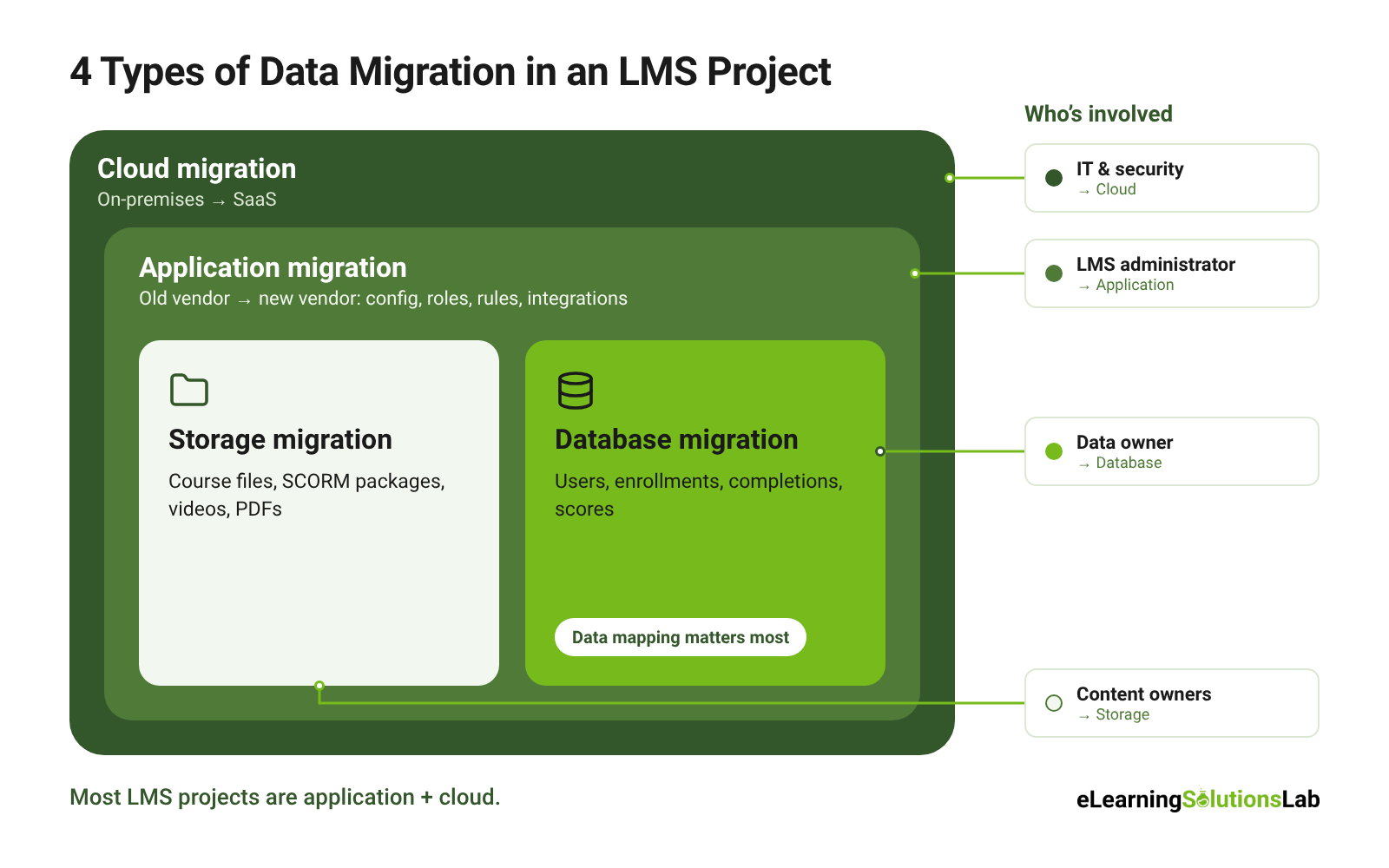
- Storage migration moves files from one storage system to another without changing them. In an LMS, that means course files, SCORM packages, videos, PDFs and certificate templates moving to new file storage or a new content delivery network.
- Database migration moves structured records between databases, often with a change of schema. In an LMS, that’s users, enrollments, completions, scores and transcripts moving from the old system’s database into the new one’s structure. Data mapping matters most here.
- Application migration moves an entire application and its data to a new platform. Switching from one LMS vendor to another is an application migration. It includes rebuilding configuration, user roles, automated enrollment rules, notifications and integrations, not just the data.
- Cloud migration moves data and applications from on-premises servers to the cloud, or from one cloud to another. Examples are moving off a self-hosted Moodle install or an older on-premises LMS onto a cloud-based LMS.
Which Type is Your Project?
Most LMS projects are application plus cloud: you’re changing vendors and moving to a SaaS platform at the same time. Database and storage migration happen inside that larger move.
Naming the types early tells you who needs to be involved:
- IT and security for cloud hosting and data residency
- An LMS administrator for configuration
- A data owner for mapping and validation
- Content owners for course files and packages
What to Migrate and What to Leave Behind
An LMS migration is the best chance you’ll get to clean house. Moving everything “just in case” brings years of clutter into the new system and adds weeks of mapping and testing. Decide what moves before you export anything.
| Data | Migrate | Archive or leave behind |
|---|---|---|
| Users | Active learners, admins, managers | Inactive accounts and departed employees (archive records, don’t recreate users) |
| Groups and hierarchy | Current org units, teams, audiences | Old structures from past reorganizations |
| Courses | Courses that are current, used and maintained | Outdated, duplicate or never-launched courses |
| Completions and scores | All records you need for reporting or compliance | Test enrollments and dummy data |
| Certificates | Active certificates with their original issue and expiry dates | Templates nobody uses |
| Learning content | SCORM, xAPI and cmi5 packages still in use | Superseded versions of the same course |
| Transcripts | Full learner history where it’s required | Nothing, if legal or HR policy says to keep it |
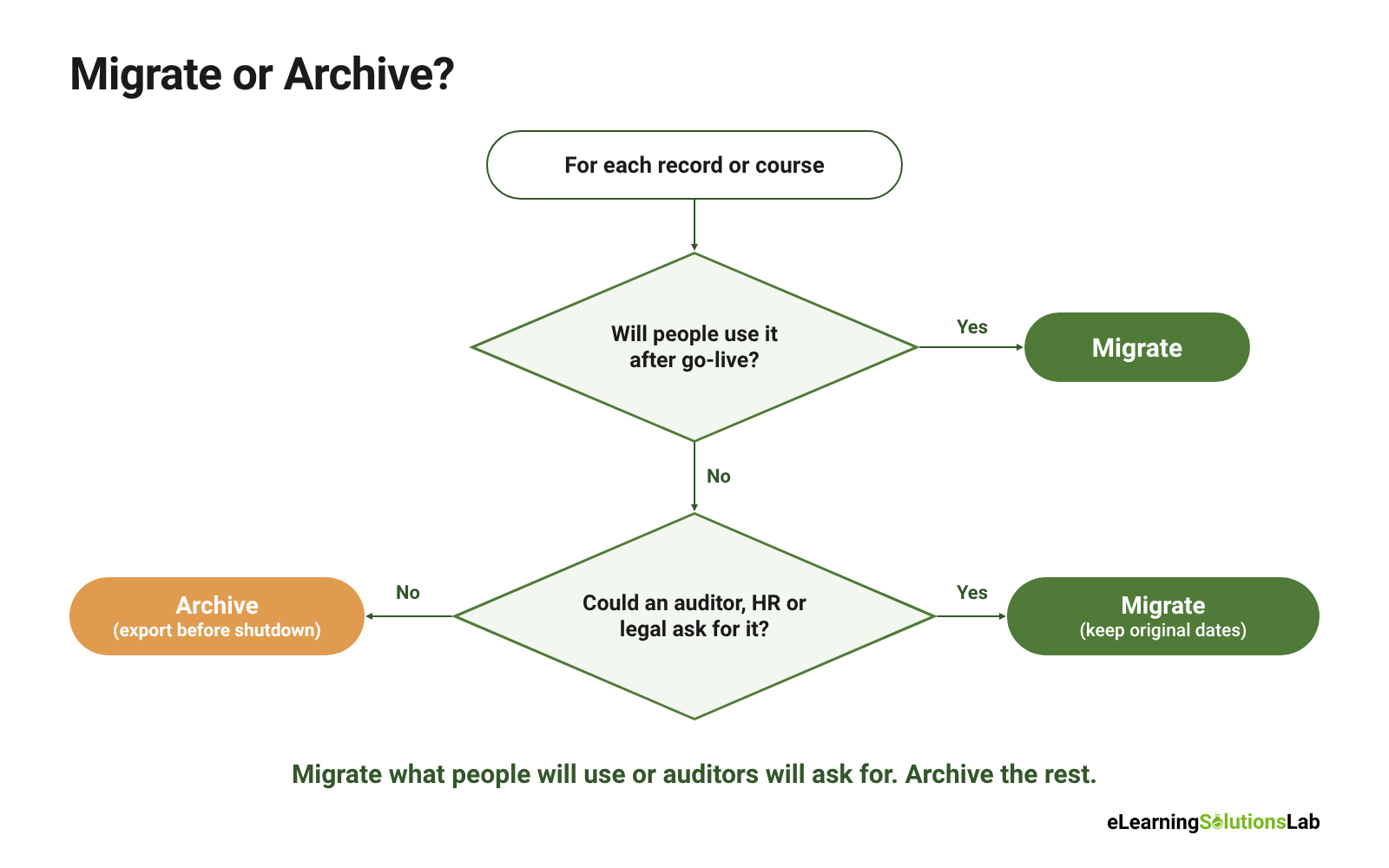
The working rule: migrate what people will use or auditors will ask for, and archive the rest. Export everything to a secure, searchable archive before the old LMS is switched off, including the data you aren’t bringing across.
Compliance and Audit Records
Compliance records are where LMS migrations most often go wrong, and where mistakes cost the most. Regulated industries that rely on eLearning compliance training, such as healthcare, finance, aviation and manufacturing, usually need to prove who completed which training, on what date and with what result. Retention periods can run for years after an employee leaves.
Before you migrate:
- Confirm retention periods with your legal or compliance team, by region and by training type, and check them against your compliance training plan.
- Keep the original dates. Completion dates, issue dates and expiry dates must transfer as they were, not as “today’s date” when the import ran.
- Keep proof of completion. That means the score, attempt history and certificate, not just a “complete” flag.
- Reconcile counts. Compare the number of compliance records before and after migration, by course.
SCORM, xAPI and cmi5 Content
E-learning standards make content portable in theory. In practice, packages often need attention after the move. The most common issues are:
- Tracking breaks silently. A SCORM course launches and plays, but doesn’t report completion or scores back to the new LMS.
- SCORM version mismatches. A SCORM 1.2 package may behave differently in an LMS tuned for SCORM 2004, so check each package against the new platform’s SCORM compliance requirements.
- xAPI data lives elsewhere. xAPI statements are often stored in a separate learning record store (LRS). Check whether yours stays or moves.
- cmi5 support varies. Confirm that your new LMS supports it natively before you rely on it.
- Hard-coded links and assets still point to the old platform.
To catch these, test a sample of every content type and authoring tool you use. Check three things in each:
- Launch: the course opens correctly.
- Tracking: it records completion, score and time spent.
- Reporting: the result shows up in the new LMS’s reports.
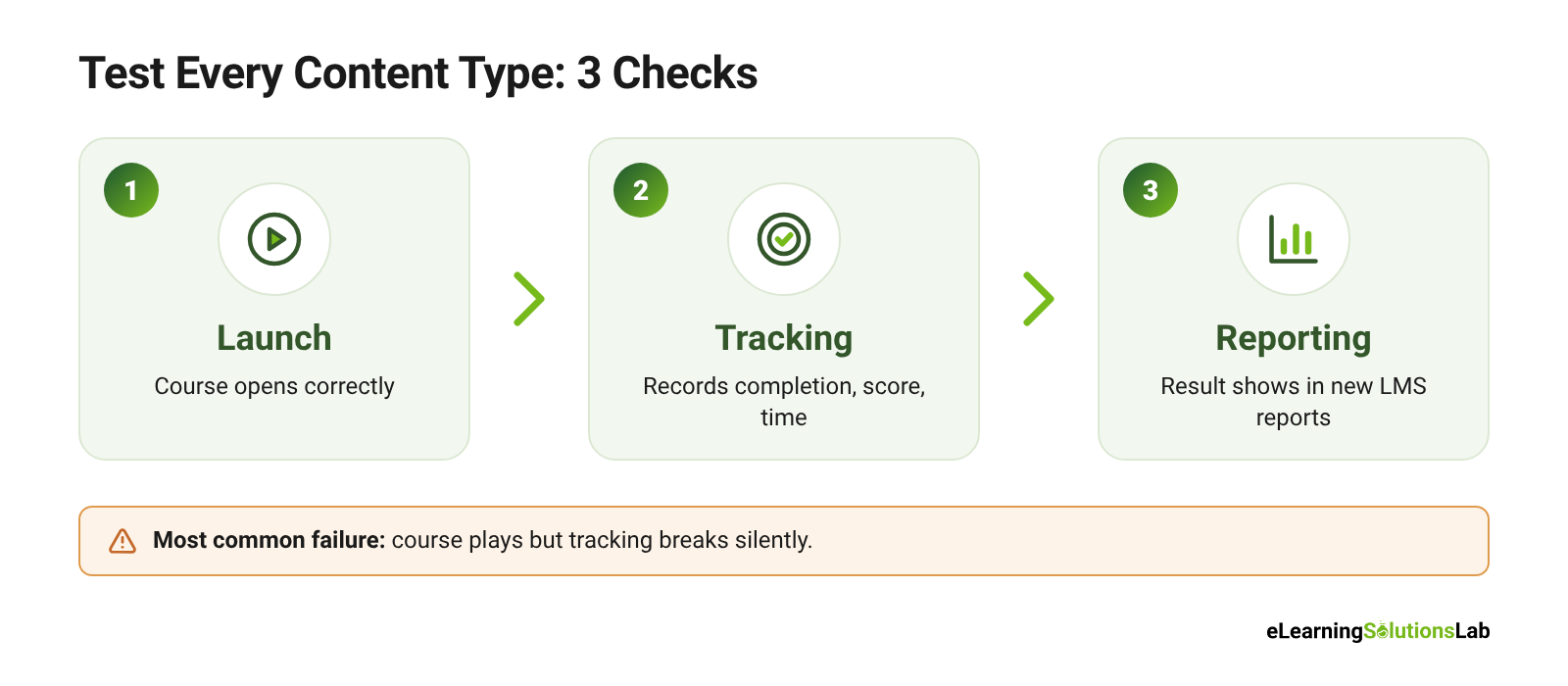
Packages that fail all three checks are often quicker to rebuild than repair. Our guide on how to create SCORM content covers the rebuild.
The LMS Migration Plan, Phase by Phase
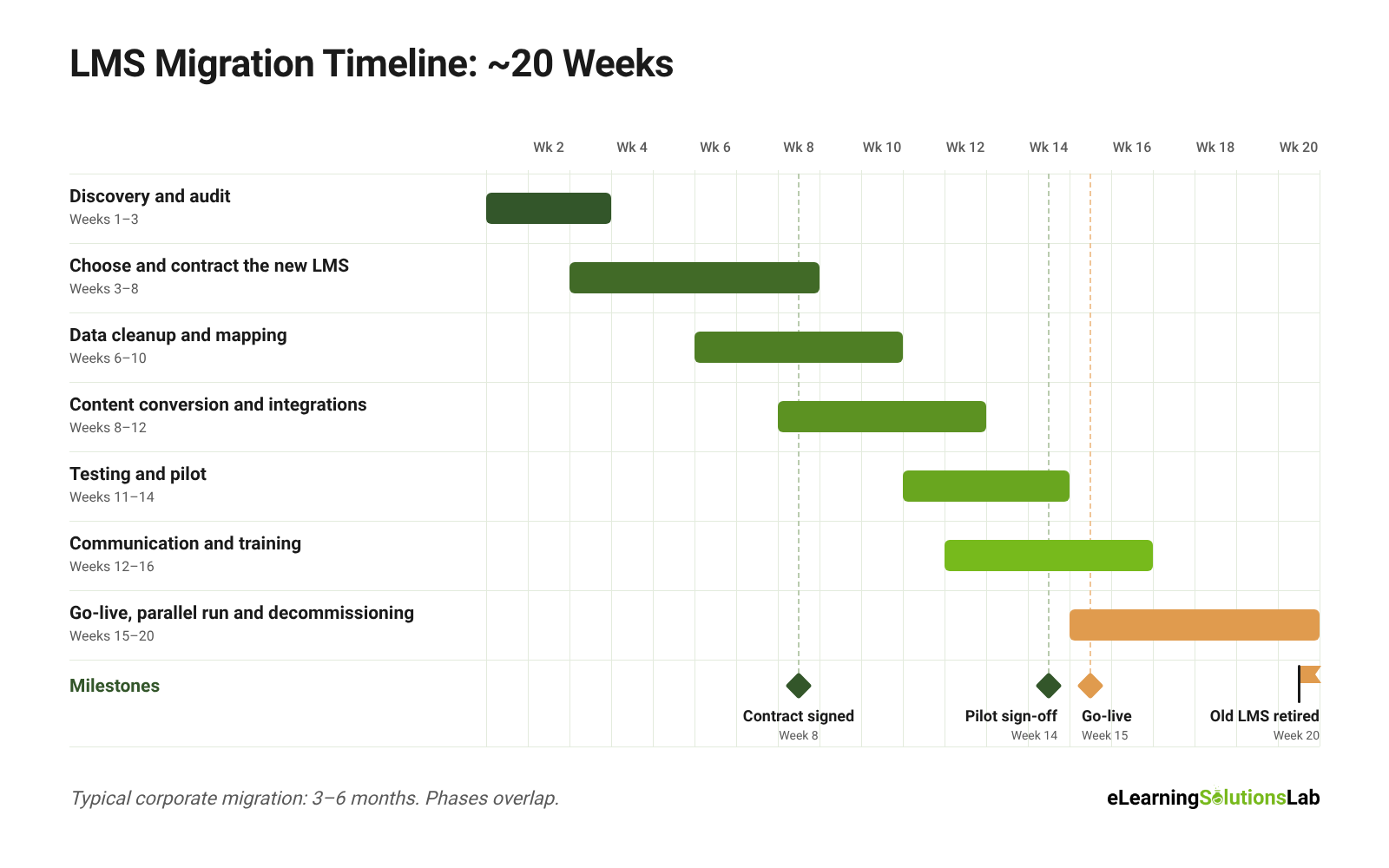
A typical corporate LMS migration takes 3–6 months, depending on data volume, the amount of content and the number of integrations. Some phases overlap, so the plan below runs to about 20 weeks rather than the sum of each phase.
| Phase | Weeks | Key output |
|---|---|---|
| 1. Discovery and audit | 1–3 | Inventory and migration scope |
| 2. Choose and contract the new LMS | 3–8 | Signed contract and project team |
| 3. Data cleanup and mapping | 6–10 | Clean data and approved mapping |
| 4. Content conversion and integrations | 8–12 | Content loaded, integrations working |
| 5. Testing and pilot | 11–14 | Pilot sign-off |
| 6. Communication and training | 12–16 | Trained admins and informed learners |
| 7. Go-live, parallel run and decommissioning | 15–20 | Live LMS, archived legacy data |
Phase 1: Discovery and Audit (Weeks 1–3)
Take stock of what you have. Make an inventory of:
- Users, groups, courses and content formats
- Completion records and certificates
- Reports in use
- Integrations and automated enrollment rules
Find out which courses are actually used and which records you’re legally required to keep. Agree on a project owner and a steering group.
Output: an inventory spreadsheet and a migrate-or-archive decision for each data type.
Phase 2: Choose and Contract the New LMS (Weeks 3–8)
If you haven’t chosen the new platform yet, turn what the audit found into an LMS requirements checklist. Our guide on how to choose an LMS walks through demos and shortlisting. During demos, ask vendors to:
- Import a sample of your real data and content
- Explain their migration support and its cost
- Show their export tools, so you know you can leave if you need to
Agree on the go-live date and how long the old and new LMS will run in parallel. Check that the old licence covers that whole period.
Output: a signed contract, a migration scope and a named project team on both sides.
Phase 3: Data Cleanup and Mapping (Weeks 6–10)
Clean the data before it moves:
- Merge duplicate users
- Fix broken email addresses and inconsistent job titles
- Delete test records
Then map every field from the old system to the new one, using the data-mapping template below. Decide how to handle fields that don’t match exactly, such as custom fields, date formats or completion statuses with different names.
Output: clean export files and an approved data map.
Phase 4: Content Conversion and Integrations (Weeks 8–12)
Load the course content and fix packages that fail. Rebuild or update anything that relied on old-platform features. For large libraries in outdated formats, legacy content conversion services can rebuild courses so they run on the new platform. Then set up each LMS integration:
- HRIS: user sync
- SSO: login
- Webinar and content tools
- Reporting or BI
Run a trial data import into a test environment, not production.
Output: content and integrations working in the test environment.
Phase 5: Testing and Pilot (Weeks 11–14)
Validate the trial import in three ways:
- Record counts against the old system
- Spot checks on individual learners’ records
- Completion and expiry dates
Test SCORM tracking, reports and notifications. Then run a pilot with a small group of real learners and managers for one to two weeks, and agree on exit criteria before it starts.
Output: a test log, fixes applied and pilot sign-off.
Phase 6: Communication and Training (Weeks 12–16)
Tell people what’s changing, when it’s happening and what it means for them. Treat this as the start of your LMS adoption strategy, not a one-off announcement. Train admins and managers first, because learners will go to them with questions. Prepare a learner FAQ, a support channel and quick-start guides.
Output: trained admins and a scheduled communication plan.
Phase 7: Go-Live, Parallel Run and Decommissioning (Weeks 15–20)
Run the final data import, re-check record counts and switch on access. Keep the old LMS available in read-only mode for a set period while you watch support tickets and reports. Only decommission it after three things are done:
- Final reconciliation of records
- A full archive export
- Sign-off from compliance
Output: a live LMS, archived legacy data and a closed-out project.
Higher-ed note: a vendor-run migration of course shells between platforms such as Canvas, Blackboard, Moodle or D2L can take as little as 45–90 days. Schedule cutover between terms, never mid-semester.
Planning your move? We can help.
At eLearning Solutions Lab, we help L&D teams move to a new LMS without losing records or breaking courses. Our LMS administration services cover data mapping, content checks and go-live support.
Looking for a platform to move to? Levantra LMS, our cloud based LMS, imports your users, completions and SCORM courses and reports on every record.
Related Reading
- How to choose an LMS – evaluating and shortlisting platforms before you sign.
- LMS requirements checklist – turning your audit into must-have features.
- LMS integration – connecting your LMS to HRIS, SSO and content tools.
- SCORM compliance requirements – making sure your courses track in any LMS.
- LMS adoption strategy – getting learners to actually use the new platform.
The Author

Book A Discovery Call
Our Learning Advisors are happy to walk you through your project step-by-step — content, timeline, and fixed pricing.
Get Your Free QuoteNo obligation — just a focused conversation. Proposal within 24 hours.
You may also like
Learning and Development Tools: What They Are, Types, and How They Fit Your Workflow (2026)
Learning and development tools are software, templates, and frameworks that…
LMS Requirements Checklist: What to Include, How to Weight It, How to Verify It and
Having a useful LMS requirements checklist does three things: it ranks what…