

SCORM is an open standard, and there are three legitimate ways to create it: by hand, by converting files you already have, or with an authoring tool – each of which has real trade-offs in cost, speed, and skills required.
This guide walks you through all three aspects of honesty, then shows you how to create SCORM content, package, test, and troubleshoot your content so it can actually report completion the first time you load it into your LMS.
What is SCORM (and why it still matters in 2026)
SCORM stands for Sharable Content Object Reference Model – is a set of technical standards that lets eLearning content and a learning management system (LMS) talk to each other.
When you package your course as SCORM, any compliant LMS knows how to launch it, track who completed it, record quiz scores, and remember where a learner left off. It’s less of a file format than a shared language that is built to the standard once, and your content will run anywhere that speaks it.
In practice, a SCORM package is just a ZIP file containing your content (HTML, JavaScript, media) plus a manifest that will tell your LMS how everything will fit together.
When a learner opens the course, the content and LMS exchange information through a small set of standardized calls – the course reports things like “started”, “50% complete”, “passed with 80%”, and your LMS will store them.
That interoperability is why SCORM has never retired. xAPI is newer and more capable, but SCORM remains the default, as almost every LMS supports it out of the box, and it will cover what most teams actually need: launch a course, track completion, and report a score.
And until that baseline changes across the industry, knowing how to produce a clean SCORM package is still a core eLearning skill, and the rest of this guide will cover exactly that.
SCORM 1.2 vs SCORM 2004 vs xAPI: Which to Choose?
Before you build anything, you have to pick a version and your choice will affect how your course reports data, how much control you have over navigation, and whether every LMS will accept it. Here’s our honest breakdown.
SCORM 1.2
Released in 2001 and still the most widely supported version anywhere. It’s simple, reliable, and accepted by virtually every LMS without fuss. It can track the essentials, including completion, pass or fail, a single course, and basic bookmarking, which is enough for the large majority of courses.
Its main limitations, of course, are a coarse completion model (it blurs “completed” and “passed” together) and a tight limit on how much progress data it can store between sessions.
SCORM 2004
Its successor, with the features 1.2 lacks: it can cleanly separate completion status from success status, can report a more detailed score, store far more bookmarking data, and its headline feature, which supports sequencing and navigation – letting you set rules like “lock module 3 until module 2 is passed”.
These trade-offs are more complex for authoring and configuration, and are slightly less universal LMS support than 1.2. Choose it best when you genuinely need branching, enforced order, or richer status reporting.
What is the latest version of SCORM?
The latest version of SCORM is SCORM 2004 4th Edition, released in 2009 – no newer version of SCORM has been released since, which is part of why xAPI emerged to handle modern tracking needs.
xAPI (Tin Can)
Not SCORM at all, but an alternative that people weigh against, so it belongs here. xAPI can track learning experiences that can happen anywhere – so it sits outside the browser, outside the LMS, across apps and the real world – and stores them in a Learning Record Store rather than purely relying on LMS runtime.
It is far more flexible and capable for analytics, but it will require more infrastructure and isn’t just a drop-in for a standard LMS course. So reach for it when your tracking needs outgrow what SCORM can see.
Pro Tip: Default to SCORM 1.2 unless you specifically need sequencing or detailed status reporting (then 2004), or you need to track learning beyond LMS (then xAPI).
Anatomy of a SCORM package
You can strip away marketing and a SCORM package that’s surprisingly mundane: it’s a ZIP file with your content inside and one special file that can hold it all together.
Here’s what a typical package looks like unzipped:
 imsmanifest.xml
This is one file every SCORM package must have – that’s sitting in the root of the ZIP. It’s an XML file that will give your LMS three things: what’s in the package, which file to launch it, and how the pieces are organized.
So if the manifest is missing, malformed, or points at the wrong launch file, the LMS will just reject the package or open a blank screen.
SCO vs ASSET
Inside the manifest, your content is actually described as one of two types, and the difference is about tracking:
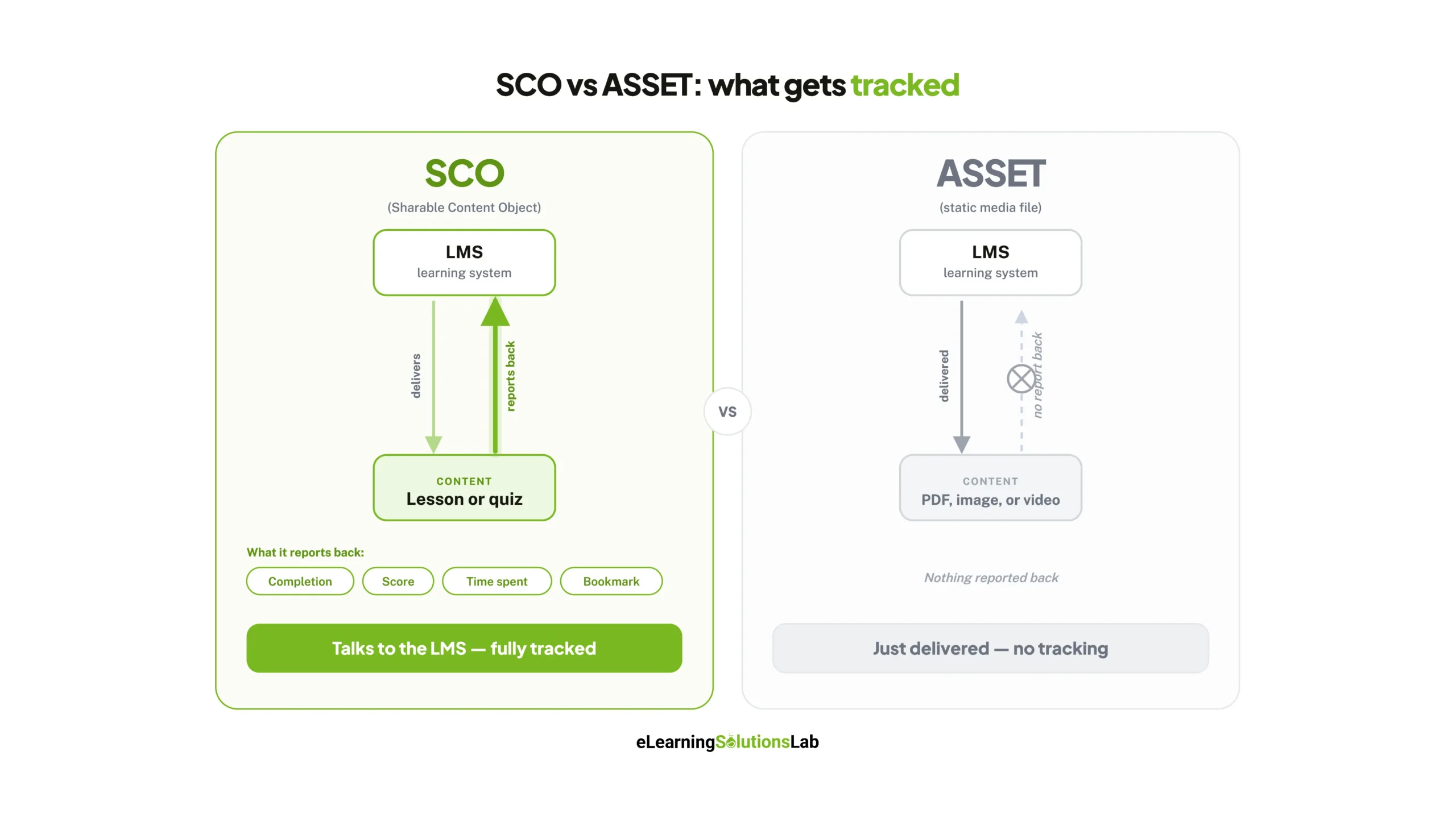
- A SCO (Shareable Content Object) is the actual content that communicates with the LMS – it can report completion, scores, time spent, and bookmarking. An example of this is a lesson or quiz.
- An ASSET is content that’s just delivered, but without any tracking, like a reference PDF, image, or standalone video. The LMS shows it, but learns nothing about what the learner did with it.
If you need to know whether someone has completed or passed it, it has to be an SCO. If it’s just a supporting material, an ASSET is fine and simpler.
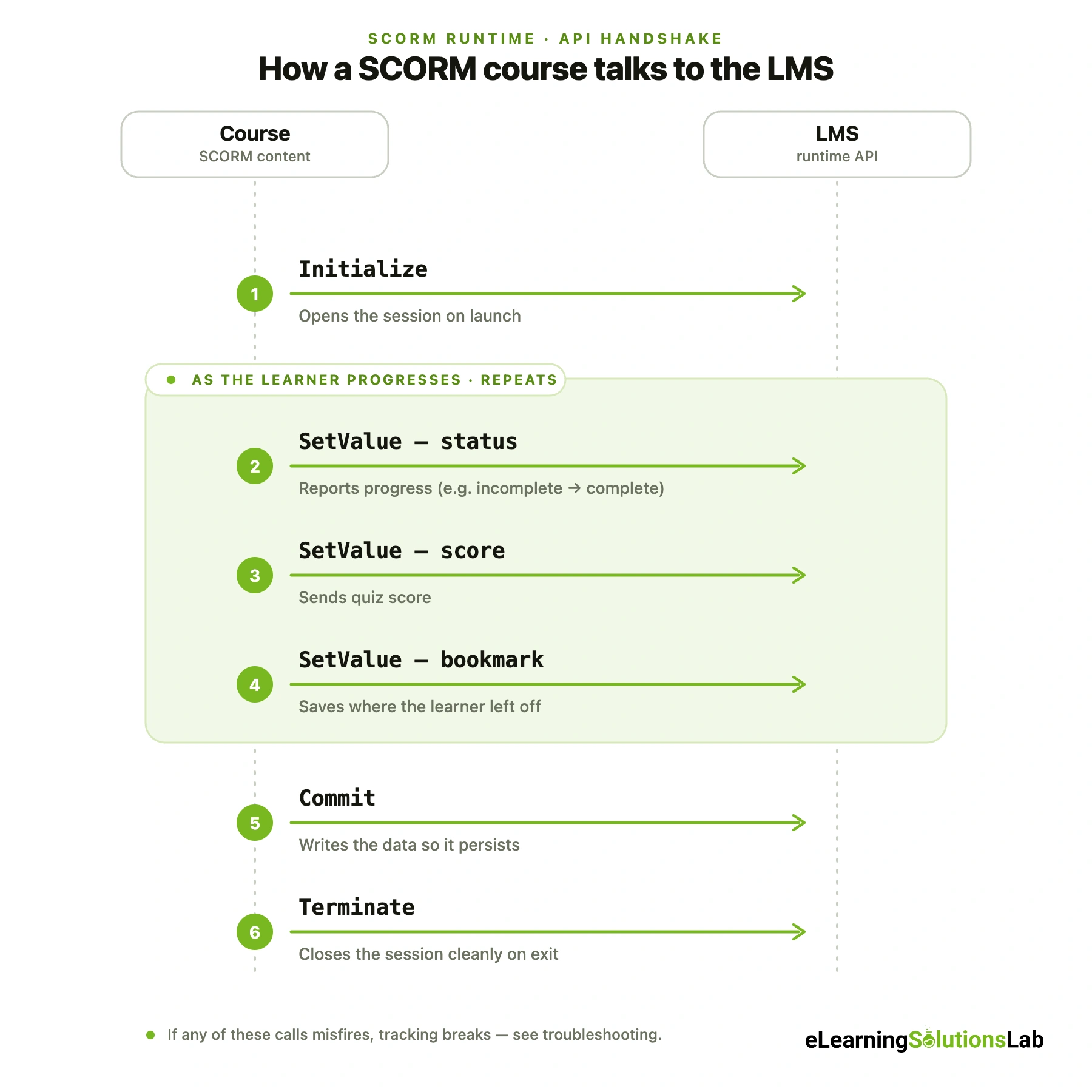
 When a learner launches your course, the JavaScript in the package looks up the LMS’s SCORM API in the browser and opens a connection – initialize, then a series of “set” calls as the learner progresses (status, score, bookmark), a commit to save, and a terminate to close cleanly.
So you don’t have to write this yourself if you will use a converter or authoring tool – they can actually generate it.
Three Ways to Create SCORM Content (Compared)
There are three routes to creating SCORM content. Here’s our honest comparison upfront, then a real walkthrough of each.
The reality is there’s no universally best method – in fact, the right one depends on what you’re building, what you already have, and who’s actually doing the work. So, below is when each makes sense and what it actually involves.
Method 1: Build It By Hand
This is the route almost no one actually explains – but it’s the free thing to do and actually gives you total control.
If you can write HTML and a little JavaScript, you can make a valid SCORM.
The work here comes down to three things. First, you need to build your content as ordinary HTML pages. Second, wire in the SCORM API calls so the course can talk to the LMS – at the bare minimum: find the API and initialize on load, use “set” calls to report status and score as the learner progresses. Commit to save that data and terminate cleanly when they exit.
Third, write an imsmanifest.xml that lists your files and names the launch page, then ZIP the whole folder.
The trade-off is that it’s the most time-consuming route – given that there’s no template or quizzing engine doing the actual work for you and you’re totally responsible for getting the API calls right, which is also where hand-coded courses most often break.
Method 2: Convert Existing Content
If you already have materials – whether you need to convert powerpoint to elearning services or repurpose a PDF, training video, or HTML page – conversion is actually the fastest path.
So you feed your file into a converter (there are many authoring tools and standalone services who can do this), and it will wrap your content in the SCORM packaging and API code automatically – while producing an uploadable ZIP.
This goes for when you’re repurposing existing assets and your tracking needs are actually simple, like: did the learner open it, get through it, maybe pass a basic quiz.
So, where it falls short plainly is its interactivity and granular tracking – it’s a converted PDF that can report that someone viewed it, but it can’t really capture the rich interaction data a purpose-built course can.
That gap between a quick auto-wrap and a properly rebuilt course is exactly where true conversion matters – our legacy content conversion services rebuild your existing materials into fully trackable, interactive SCORM rather than just zipping them up.
Method 3: Use An Authoring Tool
Authoring tools are what most L&D and eLearning teams reach for and it’s for a good reason: they handle the SCORM plumbing invisibly while giving you templates, slide-based or block-based editing, built-in quizzing, responsive output for mobile, and just one-click publishing for your chosen SCORM version.
Here, you just focus on content creation, and the tool will generate the manifest, API calls, and the ZIP file.
Authoring tools in the marketplace today have two categories: Cloud (browser-based) tools let teams collaborate, update content live, and work from anywhere – usually on a subscription basis.
Desktop tools that you install on your machine – often giving finer design control and offline work, and may be a one-time purchase. So neither is better in the abstract – cloud suits best for distributed teams and frequent updates: desktop suits power users and tight design control.
The trade-off when using authoring tools is cost and a degree of lock-in: you’re just working within the tool’s structure and, for paid options, paying ongoing fees for it.
But for producing polished, interactive courses at scale, without touching code, one of the best elearning authoring tools is the pragmatic choice for many organizations.
So which should you pick?
If you have technical skills and you want control or zero cost, hand-code it by all means. If you’re repurposing existing material quickly, convert it. If you’re building interactive courses regularly and want speed without code, you can use an authoring tool.
Step By Step: From content to a finished SCORM package
These steps matter and serve as your connective tissue – given that decisions here matter more than the tool you’re holding.
Step 1: Plan and scope your content.
You need to decide what course needs to be taught and, just as importantly, what counts as “done”. Ask questions like, “Is completion based on viewing every page, passing a quiz, or both?”
When you settle and decide it now, it will prevent the most common downstream problem, like a course that runs fine but never truly reports completion, given that no one has defined what completion means.
Step 2: Build or import your content.
Start creating your pages, slides, and interactions, or just import existing files you’re converting. You need to keep media organized in their own folders – as messy file references are a frequent cause of broken assets after packaging.
Step 3: Set tracking and completion criteria.
This is the step most people rush and later regret – explicitly define how the eLearning course reports status: what triggers “complete”, whether there’s really a passing score, and what that threshold is.
Be deliberate about the difference between completed and passed based on your own context and situation – as these are separate signals, and many complaints of why tracking doesn’t work come from conflating them or just leaving the trigger unset.
Step 4: Choose your SCORM version.
Apply the decision from earlier: 1.2 for broad compatibility and simple needs, 2004, if you need actual sequencing or detailed status. Set this before you publish, given that switching it later usually means re-exploring and re-testing.
Step 5: Configure exit and resume behavior.
Next is to decide what happens when a learner closes mid-course (should it resume where they left off?) and what the course sends on existing. Since getting this wrong will produce the frustrating statements like “my progress didn’t save,” experience – a setting issue that’s far more often than a bug.
Step 6: Publish or export the package.
Start to generate the SCORM ZIP. An authoring tool or converter does this in a click-by-hand if you ZIP the folder with imsmanifest.xml at the root (a common mistake is zipping the parent folder, which can bury the manifest one level too deep and make the LMS reject the package).
Step 7: Validate before you ship.
You don’t need to upload an untested package straight to your live LMS. You need to test, which will save you from discovering problems in front of real learners.
Testing your SCORM package before you ship it
Here are free and standard ways to test your SCORM package.
Test in SCORM Cloud first
What is SCORM Cloud?
SCORM Cloud is a free, browser-based testing platform that can run your SCORM package the way an LMS would, so you can confirm it works before you upload it anywhere.
SCORM Cloud is the de facto standard for testing SCORM, and its free tier is enough to validate most courses. Given that it’s the reference implementation of the standard rather than any one LMS’s interpretation, it will tell you whether your package is genuinely correct – not just whether it can happen to work in one particular system.
The workflow is actually simple: create a free account, upload your ZIP, launch your course, and watch how it behaves.
The real power here is the debug log. SCORM Cloud can show you the live conversation between your course and the runtime: every initiate, set, commit, and terminate call as it fires. So when something isn’t tracking, this log is where you will see which call is missing or sending the wrong value.
How do I open or preview a SCORM file?
To open a SCORM file outside an LMS, you have to upload the ZIP to SCORM Cloud and launch it there, given that a SCORM package won’t run by simply unzipping it and opening the HTML, as it needs an LMS or testing platform to handle the tracking calls.
What to verify
You need to run through this checklist on every package before you ship it to your LMS:
- It launches. The eLearning course opens to the right page with no blank screen or manifest error.
- It reports completion. Finishing the course actually flips the status to complete and triggers on the condition you intended (viewed all pages, passed the quiz, or both).
- Score passes back. If there’s a quiz, the score reports correctly, and the pass or fail threshold behaves as configured, it is considered proper.
- It bookmarks and resumes. Exit partway through, relaunch, and confirm that the course returns you to where you left off with progress intact.
- It closes cleanly. Existing fires terminate without throwing errors or handing.
If all these five things hold in SCORM Cloud, your package is sound. And if something falls, you need to troubleshoot it.
Troubleshooting: why your SCORM course won’t report completion
Below are the most common failures that actually happen – we organize by symptom with likely causes and how to fix each of them.
Symptom: Completion or status never registers
The learner finishes, but the LMS shows incomplete.
- Likely cause: the eLearning course isn’t firing up and terminating properly, so the LMS never opens or closes the session, and data sent in between is lost. Or the completion trigger was never set: the course has no rule telling it what “complete” means.
- Fix: In the debug log, confirm the initialization call succeeds at launch and terminate fires on exit. If both are firing, you can check your completion criteria – make sure something (last page reached, and quiz passed) actually sets the completion status.
Symptom: quiz score doesn’t pass back
The course is complete, but the score is blank or wrong in the LMS.
- Likely cause: the score is being set on the wrong data element, or it’s set but never committed before the session ends.
- Fix: verify the course sends the score to the correct SCORM element and calls commit afterward to save. A score set but not committed disappears when the learner exists. You also need to confirm your pass or fail threshold is configured – a missing threshold can leave the LMS unsure how to interpret the score.
Symptom: progress doesn’t save between sessions
Learners have to restart from the beginning every time:
- Likely cause: bookmarking or resume data isn’t being written, or you’re hitting the storage limit. SCORM 1.2 caps how much progress data (suspend_data) it can hold, and large courses can silently overflow it – corrupting the resume.
- Fix: You can confirm that the course writes resume data and commits it to exist. So if you’re on 1.2 and pushing a lot of state, the suspend_data ceiling may be the culprit – which trims what you store, or moves to SCORM 2004 (which allows far more), resolves it.
What is suspend_data?
(suspend_data is the field SCORM uses to store a learner’s resume progress between sessions)
Symptom: works in SCORM Cloud but breaks in your LMS
It passes every test, then fails once uploaded.
- Likely cause: a mismatch between your package and what the LMS expects – so a version your LMS handles poorly, a stricter security setup, or a launch quirk specific to that platform.
- Fix: You can check the obvious culprits in order. You can confirm your LMS if it fully supports your SCORM version (some handle 1.2 better than 2004, or vice versa). You can rule out HTTPS/mixed-content issues, like a course loading insecure (HTTP) resources on a secure LMS page, which will be blocked by the browser. You can also check whether the LMS launches courses in a pop-up that a blocker is killing. And confirm as well if the manifest sits at the ZIP root, not nested in a subfolder.
Pro Tip: Reproduce the failure in SCORM Cloud, open the debug log, and find the last call that succeeded – the problem here is almost always in what should have happened next.
Uploading SCORM to your LMS
Once your eLearning package passes testing, getting it into your LMS is usually the easiest step. So here’s a general flow, then the specifics and maybe gotchas for popular LMS platforms.
General Flow
Almost every LMS follows the same pattern: you need to find where new content or courses are added, choose the SCORM (or “SCORM package” / “upload package”) option, then upload your ZIP as-is without unzipping it, and the platform will read the manifest and import it.
From this, you’ll then set course-level options – enrollment, completion rules, how attempts are counted, and click publish.
Platform-specific notes
- Moodle – Simply add a SCORM activity to a course, then upload your ZIP. Moodle normally exposes a lot of settings (grading method, attempts, display in popup vs. current window) – the display setting, for instance, is worth checking, given that the wrong choice can clip your course or trigger popup issues. Moodle generally favors SCORM 1.2.
- Cornerstone (CSOD) – Content is loaded through its course catalog or content management area and often goes through a brief publishing or approval step before it’s available, so the eLearning course won’t just appear instantly. Version support is broad, but configuration is admin-heavy.
- TalentLMS – among the more forgiving platforms: create a coures, add the SCORM file as a unit, and it imports quickly with minimal configuration. It’s a great platform for confirming a package behaves in a real LMS without much overhead.
- Other LMSs (Docebo, LearnUpon, Canvas, etc.) – the flow is actually the same, just the labels may differ for each platform (“learning object,” “module,” “package”).
The Author

Book A Discovery Call
Our Learning Advisors are happy to walk you through your project step-by-step — content, timeline, and fixed pricing.
Get Your Free QuoteNo obligation — just a focused conversation. Proposal within 24 hours.
You may also like

eLearning Voiceover: Complete Buyer’s Guide (2026)
Good narration does a lot of the teaching in your eLearning course. It walks…
Video Based eLearning: Types, Costs, Examples and How to Build It (2026)
Short answer Video based eLearning is online training that uses video as the…