


- Published
- Reading time
- 14 min
Filed under LMS & Platforms
Your team probably spends hours each week enrolling new hires, chasing overdue courses, and building those completion reports by hand. Automated training takes that work off your plate.
Automated training uses software rules to handle the repetitive parts of employee training – including assigning courses, sending reminders, escalating overdue learners, renewing compliance certifications, grading assessments, and reporting progress. You can set the rules once, and your system runs them for every learner.
In this guide, you’ll see what to automate (and what to leave to people), how to set it up in an LMS or a tool like Power Automate, and how many hours you could actually save. You’ll also get 12 workflow templates you can copy.
Short on time? Jump to the 12 workflow templates.
Updated November 2026.
In This Article
- What is automated training?
- How automated training works: trigger → rule → action
- Benefits of automated training
- 12 automated training workflow templates
- How to set up automated training, step by step
- Which automated training tool do you need?
- Using AI to automate training content creation
- What not to automate
What is Automated Training?
Automated training is the use of software to run the routine admin of a training program without anyone doing it by hand. You can decide the rules: who takes which course, when reminders go out, what happens when someone falls behind. Your LMS or workflow tool then applies those rules to every learner, every time.
It helps to be clear about what automated training isn’t. It doesn’t really design your courses, coach your people, or replace your trainers. It can take over the repetitive tasks around the training (enrolling, reminding, chasing, tracking, reporting), so that your team can spend that time on the work that needs people.
Automated Training vs. Manual Training Admin
| Task | Manual | Automated |
|---|---|---|
| Enrolling new hires | L&D adds each person after HR emails a list | New hires are enrolled the moment they’re added to the HRIS |
| Reminders | Someone sends emails one at a time | Reminders go out on a schedule, with escalation to managers |
| Compliance renewals | Tracked in a spreadsheet, often missed | Learners are re-enrolled automatically before certificates expire |
| Assessments | Graded and followed up by hand | Auto-graded, with a refresher assigned when someone fails |
| Reporting | Built monthly from exports | Live dashboards and scheduled reports to each manager |
Who Uses Automated Training?
- Internal L&D and HR teams can use it to run onboarding, role-based learning paths, and ongoing development for employees.
- Compliance managers can use it to make sure required training is renewed on time and every completion is recorded for audits.
- Customer and partner training teams can use it to onboard customers, certify partners, and keep everyone current as the product changes.
- Training providers can use it to handle course bookings, joining instructions, invoicing, and trainer scheduling.
How Automated Training Works: Trigger → Rule → Action
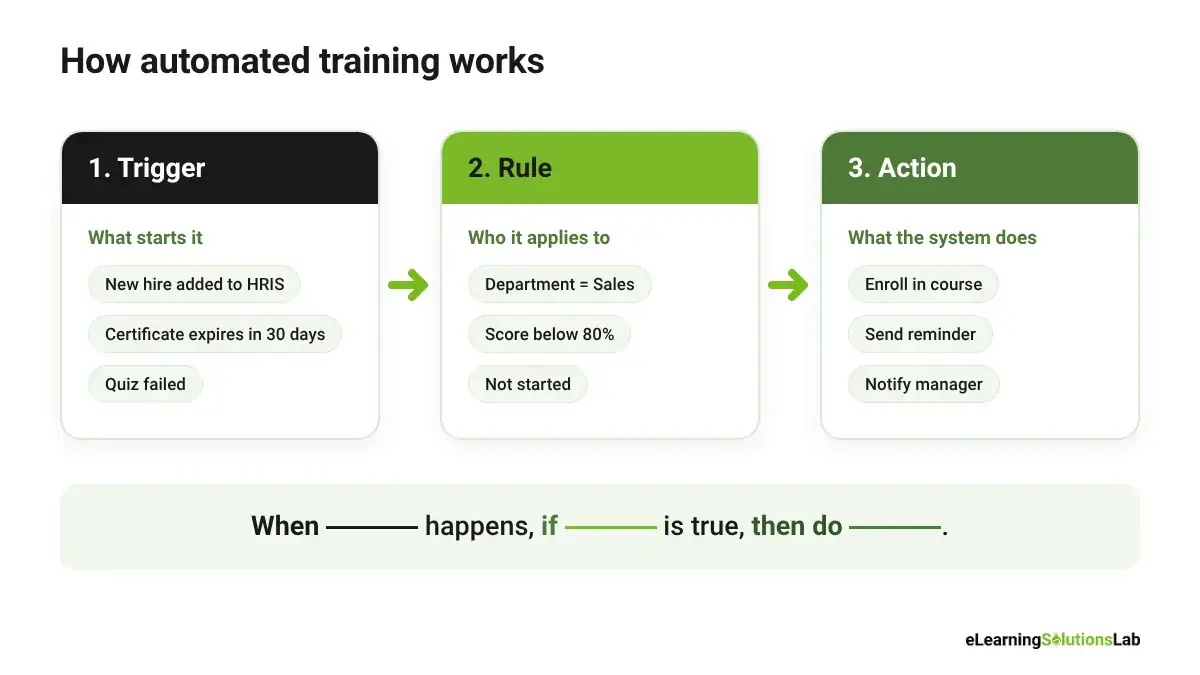
Every automated training workflow, simple or complex, is genuinely built from the same three parts.
1. Trigger: What Starts the Workflow
A trigger is an event or a date that tells your system it’s time to act. Common triggers may include:
- New employee is added to the HRIS
- Someone changes role, team, or location
- A certificate is due to expire in 30 days
- Course hasn’t been started 7 days after it was assigned
- Learner fails a quiz
- Set day and time, such as every Monday at 9 a.m.
2. Rule: Who It Applies To
A rule is typically a condition that decides whether the workflow runs for a given person. It can narrow the trigger down to the right people:
- Department is Sales
- Location is the UK
- Score is below 80%
- Course status is “not started”
3. Action: What the System Does
The action here is the task the system carries out once the trigger and rule line up:
- Enroll the learner in a course or learning path
- Send a reminder email or chat message
- Notify the learner’s manager
- Assign a short refresher module
- Issue a certificate
- Update a report or dashboard
Putting It Together
Here’s how the three parts read as a single workflow:
When a new hire is added to the HRIS (trigger),
if their role is Customer Support (rule),
then enroll them in the 30-day onboarding path and email their manager (action).
Once you can write a task in this “when / if / then” format, you can automate it. And that’s also the best way to plan before you can build anything: list your repetitive training tasks, write each one as a trigger, rule, and action, and you’ll have a ready-made blueprint for your LMS or workflow tool.
Benefits of Automated Training
Here are the main benefits of automated training:
1. Saves Admin Hours
Enrolling learners, chasing overdue courses, and building reports can take up a large share of an L&D team’s week. Automation really hands those tasks to the system, so that your team can spend the time on design, coaching and strategy.
2. Fewer Missed Compliance Deadlines
Renewals, reminders, and escalations run on schedule, so that your certifications don’t lapse because someone forgot to check a spreadsheet. Every completion is recorded, which makes audits much easier.
3. Same Experience for Every Learner
Each new hire in each location gets the same courses, in the same order, at the same time. Nobody misses out because their manager forgot to request access.
4. Faster Onboarding
New hires are enrolled on day one, and the next step unlocks as soon as they finish the last one. They can get up to speed faster, with fewer gaps.
5. Personalized Learning Paths
Rules based on role, team, location, or skill level can mean each person gets the training that fits their job.
6. Live Data for Managers
Your managers see who’s on track and who’s behind in real time, instead of waiting for a monthly report built from exports.
7. Scales Without Adding Headcount
For instance, ten new hires a month or a hundred, the workflows can run the same way. And your training program can grow without your L&D team having to grow with it.
12 Automated Training Workflow Templates
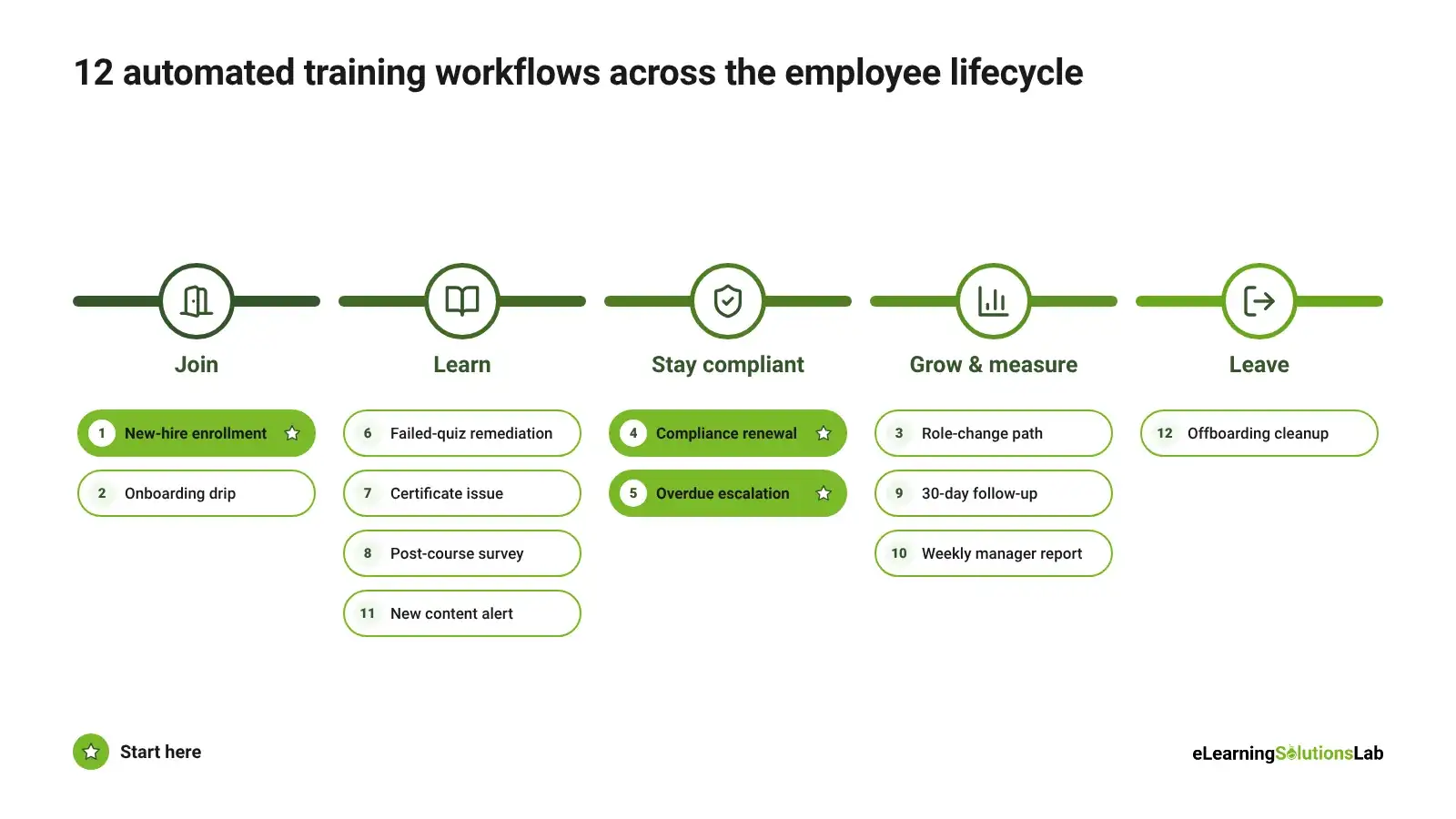
These are 12 workflows that most L&D teams can set up first. Each one follows the trigger → rule → action format, so you can rebuild it in almost any LMS or workflow tool.
You can copy them as they are or adjust the rules to fit your organization.
| # | Workflow | Trigger | Action | Tool type | Example |
|---|---|---|---|---|---|
| 1 | New-hire enrollment | Employee added to HRIS | Enroll in onboarding path, email manager | LMS + HRIS sync | A support hire gets the 30-day path |
| 2 | Onboarding drip | Day 1, 7, 14 and 30 after start date | Release next module, send nudge | LMS | Week 2 unlocks product training |
| 3 | Role-change path | Job title changes in HRIS | Assign the new role’s curriculum | LMS + HRIS | Promotion to manager → leadership basics |
| 4 | Compliance renewal | Certificate expires in 60 days | Re-enroll, send reminder | LMS | Annual data privacy course |
| 5 | Overdue escalation | Course overdue by 7 days | Notify learner, then manager | LMS / workflow tool | Manager gets a list of overdue team members |
| 6 | Failed-quiz remediation | Score below 80% | Assign 5-minute refresher, allow retake | LMS | Safety quiz retake |
| 7 | Certificate issue | Course completed and passed | Generate certificate, store record | LMS | PDF sent to the learner and the HR file |
| 8 | Post-course survey | Course completed | Send survey after 24 hours | LMS / form tool | Level 1 reaction survey |
| 9 | 30-day follow-up | 30 days after completion | Send manager an observation checklist | Workflow tool | Level 3 behavior check |
| 10 | Weekly manager report | Every Monday | Email each manager a completion report for their team | LMS / BI tool | Region-by-region dashboard |
| 11 | New content alert | Course published or updated | Notify the target audience | LMS / Teams / Slack | Product update training |
| 12 | Offboarding cleanup | Employee marked as leaving in HRIS | Unenroll, archive records | LMS + HRIS / RPA | Licenses freed up |
Copy-Ready Versions
You can use these as your build specs. Swap in your own roles, scores, and timings.
- New-hire enrollment – when your employee is added to the HRIS, if their start date is within 7 days, enroll them in their role’s onboarding path and email their manager.
- Onboarding drip – when a new hire reaches day 7, 14, or 30, if the previous module is complete, unlock the next one and send a short nudge.
- Role-change path – when a job title changes in the HRIS, if the new role has a set curriculum, assign it with a 30-day due date.
- Compliance renewal – when your certificate is 60 days from expiry, if the course is still required for the role, re-enroll the learner and send reminders at 30 and 7 days.
- Overdue escalation – when your course is 7 days overdue, if it’s still not complete, remind the learner. After another 7 days, you can notify their manager.
- Failed-quiz remediation – when a quiz is submitted, if the score is below 80%, assign a short refresher on the missed topics and unlock one retake.
- Certificate issue – when a course is completed, if the learner passed, generate a certificate, add it to their record, and set an expiry date.
- Post-course survey – when a course is completed, wait 24 hours, then you can send a 3–5 question feedback survey.
- 30-day follow-up – when 30 days have passed since completion, if the course is skills-based, send the manager a short checklist on whether the skill is being used.
- Weekly manager report – every Monday at 9 a.m., send each manager a report covering their team only: completed, in progress, and overdue.
- New content alert – when a course is published or updated, if it’s relevant to a role or team, notify those learners by email or chat.
- Offboarding cleanup – when an employee is marked as leaving in the HRIS, unenroll them from all courses, archive their training record, and free up their license.
Where to Start
You don’t need all 12 on day one. Most teams start with #1 (new-hire enrollment), #4 (compliance renewal), and #5 (overdue escalation), given that these three can save the most hours and carry the most risk if they’re missed. You can add the rest once those are running smoothly.
Free Template
Get the Training Automation Trigger Map
All 12 workflows plus 18 more in one Google Sheet, with blank rows to plan your own. It also includes an automation audit, a reminder schedule, a go-live checklist, and a calculator to estimate the hours you’ll save.
How to Set Up Automated Training: Step by Step
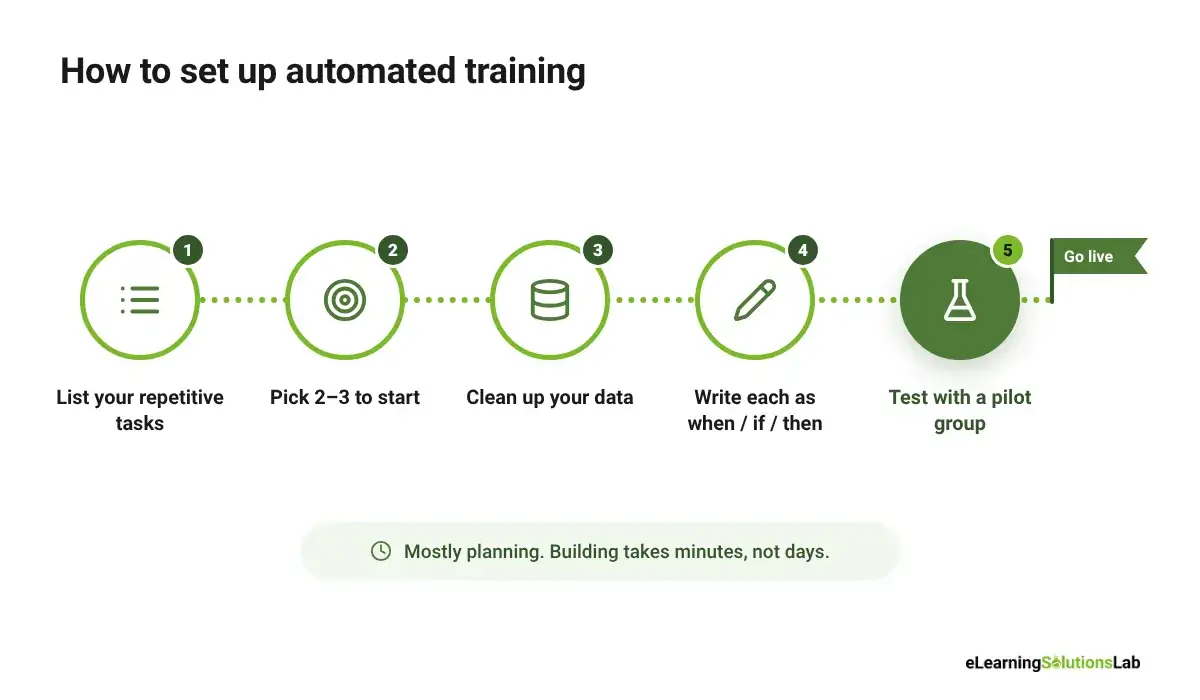
Setting up automated training is mostly planning. Once you know exactly what each workflow should do, you can build it in your tool, which usually takes minutes, not days.
Step 1: List Your Repetitive Training Tasks
Write down every training task your team does more than once a month: tasks like enrolling people, sending reminders, chasing managers, tracking certificates, building reports. And next to each task, simply note roughly how many hours it takes per month.
Step 2: Pick Two or Three to Start With
You can choose tasks that happen often, follow a clear rule, and cause problems when they’re missed. For most teams, that means new-hire enrollment, overdue reminders, and compliance renewals. Small early wins will make it easier to get support for the next round.
Step 3: Clean Up Your Data
Automation depends on accurate data. So you have to check that job titles, departments, locations, start dates, and manager names are complete and consistent in your HRIS. If “Customer Support,” “Cust. Support,” and “CS” all mean the same team, your rules will miss people.
Step 4: Write Each Workflow as Trigger → Rule → Action
Before you can open any tool, you have to write the workflow in plain language: “When ___ happens, if ___ is true, then do ___.” You can use the templates above as a starting point – it’s also the document you’ll share with IT or your LMS admin.
Step 5: Test With a Pilot Group, Then Switch It On for Everyone
You have to run each workflow with a small group first, ideally one team or one location. Then check that the right people were enrolled, the messages make sense, and nothing went out twice. Fix any problems, then roll it out.
Setting It Up in an LMS
Most modern LMSs have built-in automation. The menus and names vary, but the setup usually follows these steps:
- Create audiences by rule – set up groups that fill themselves based on user fields, such as “all users where department = Sales.” New people can join the group automatically as soon as their details match.
- Build the learning path – put the courses in order, set prerequisites, and add due dates relative to the enrollment date (for example, “due 14 days after enrollment”).
- Set enrollment rules – connect the audience to the learning path, so that anyone who joins the group is enrolled automatically.
- Set up notifications and escalations – turn on the reminder emails you need, choose when they go out, and add a manager notification for overdue learners. You may switch off the default notifications you don’t need.
- Schedule reports – create a report for each manager or region and set it to send on a regular schedule.
If your LMS connects to your HRIS, you can set up the user sync first. That’s what lets your new hires, role changes, and leavers flow into the LMS without anyone uploading a spreadsheet. If you’re still rolling out your platform, our LMS adoption strategy guide covers how to get people using it, and our guide to choosing a sales training LMS shows what to look for in a platform’s automation features.
Common Setup Mistakes
- Too many notifications – if your learners get a message for every small event, they will start ignoring all of them. You have to keep reminders few and well timed.
- Automating messy data – bad data in means the wrong people enrolled. You have to clean the data before you build.
- No owner for broken flows – workflows can fail without anyone noticing, for example, when a password changes or a field is renamed. You have to give every workflow an owner and check it regularly.
- No exceptions – plan for people on leave, part-time staff, contractors, and people who transfer mid-course, so that they aren’t flagged as overdue by mistake.
- Set and forget – review your workflows every quarter and after any change to your HRIS or LMS.
Which Automated Training Tool Do You Need?
Most articles on automated training recommend one platform. In practice, the right tool depends on what you’re automating, and many teams use more than one. Here’s how the main types compare:
| Tool type | Best for | What it automates | Examples | Watch out for |
|---|---|---|---|---|
| LMS / LXP | Internal employee training | Enrollment, learning paths, reminders, certificates, reports | Docebo, TalentLMS, iSpring Learn, Moodle | Automation features often depend on your pricing plan |
| Training management system (TMS) | Instructor-led training and training providers | Bookings, scheduling, invoicing, trainer and room logistics | Arlo, Gyrus | Less suited to self-paced eLearning |
| Workflow automation tools | Connecting your LMS, HRIS, chat and email | Triggers and actions across several systems | Power Automate, Zapier, Nintex | Needs a clear owner; flows can fail without anyone noticing |
| RPA (robotic process automation) | Older systems with no API or connector | Data entry, user setup, offboarding | Automation Anywhere, UiPath | Higher cost and usually needs IT |
| AI content tools | Producing training content faster | First drafts, quiz questions, voiceover, video | AI features in authoring tools and LMSs | Every draft needs expert review |
For most internal L&D teams, the LMS does most of the work. A workflow tool such as Power Automate or Zapier fills the gaps, usually by connecting the LMS to your HRIS, Microsoft Teams or Slack. For a wider look at the software in a training team’s stack, see our guide to learning and development tools.
Questions to ask a vendor before you buy:
- Does it sync users automatically from our HRIS, including role changes and leavers?
- Can we create audiences and enrollment rules from any user field?
- Can reminders escalate to managers, and can we limit how many messages a learner gets?
- Can we schedule reports so each manager only sees their own team?
- Does it connect to Power Automate, Zapier or our other tools, or offer an open API?
- Which automation features are included in our plan, and which cost extra?
Using AI to Automate Training Content Creation
Most automated training guides focus on admin: enrollment, reminders and reports. But for many L&D teams, the biggest bottleneck is producing the training content itself. AI tools can now take on a large part of that work.
What AI can speed up today:
- First drafts of course outlines, scripts and storyboards from your source documents
- Quiz questions generated from a policy, SOP or product guide
- Summaries and job aids from longer training materials
- Translation drafts for localized versions of a course
- AI voiceover and video created from a script or slides
- Practice conversations where learners role-play with an AI coach
What still needs people: checking accuracy with subject matter experts, instructional design decisions, your brand’s tone, and accessibility. AI drafts can contain errors or miss your company’s context, so treat them as a starting point, not a finished course.
A simple process that works:
Source document → AI first draft → SME review → instructional designer edit → build → QA
Before you upload company documents to an AI tool, check your organization’s data and privacy policy. For more on where AI helps and where it doesn’t, see our guide to AI for instructional design.
What Not to Automate
Automation works best on tasks that repeat and follow a clear rule. Some parts of training need judgment, trust, or a personal touch, and those should stay with people. A good rule of thumb: automate the admin, and keep the relationship human.
| Keep it human | What you can automate around it |
|---|---|
| Coaching and feedback conversations | Reminders to schedule check-ins, and conversation guides sent to managers |
| Hands-on skills sign-off (equipment, clinical and safety-critical tasks) | Booking the assessment, sending the checklist and recording the result |
| Decisions about performance issues or disciplinary training | Enrolling the learner once a manager has decided, and tracking completion |
| Training needs analysis and course design | Collecting survey data and pulling LMS reports for the analysis |
| A human welcome in a new hire’s first week | Scheduling the welcome meeting and sending the new hire’s agenda |
| Learners who keep failing or falling behind | Flagging them to their manager and L&D for a conversation |
In one line: write each repetitive training task as “when, if, then,” automate the ones that happen often and cause problems when they’re missed, and keep the coaching, judgment and welcome human.
Want training that runs itself inside your LMS?
At eLearning Solutions Lab, we design onboarding, compliance and product training that’s built to run inside your LMS, with learning paths, assessments and reporting set up from day one.
Our custom eLearning development services build the courses, and our instructional design services make sure every workflow supports a real learning goal.
Explore custom eLearning developmentSee our instructional design services
Related Reading
- Employee onboarding and training – building the onboarding path you’ll automate.
- Compliance training plan – planning the mandatory training behind your renewal workflows.
- How to track employee training – the reports and data to set up first.
- Kirkpatrick Model – what to measure once your training runs on its own.
- Learning and development tools – the wider L&D software stack.
The Author

Book A Discovery Call
Our Learning Advisors are happy to walk you through your project step-by-step — content, timeline, and fixed pricing.
Get Your Free QuoteNo obligation — just a focused conversation. Proposal within 24 hours.
You may also like
LMS Migration Guide 2026: Plan, Timeline, Data Mapping & Free Checklist
LMS migration may look simple on a vendor's slide: export, import, go live. In…
Learning and Development Tools: What They Are, Types, and How They Fit Your Workflow (2026)
Learning and development tools are software, templates, and frameworks that…