


- Published
- Reading time
- 15 min
Filed under eLearningeLearning Development
Most eLearning accessibility checklists tell you what to check. Very few tell you how to actually check it, how to fix it in Storyline, Rise or your LMS, or which law you’re checking against in the first place.
This one does. You’ll get 54 checks built on WCAG 2.2 AA, each with a short “how to check / how to fix” note, the WCAG criterion it maps to, and whether you can fix it once in your template or have to check it on every screen. And you can download the whole thing as a free PDF, no email needed.
Short on time? Jump to the 10 checks to do first or download the free PDF checklist.
Updated November 2026.
In This Article
- What is eLearning accessibility?
- Quick start: the 10 checks to do first
- eLearning accessibility requirements by region
- The eLearning accessibility checklist (WCAG 2.2 AA)
- What's new in WCAG 2.2 for eLearning
- How to test an eLearning course for accessibility
- Notes for Storyline, Rise, Captivate and your LMS
- Free eLearning accessibility checklist (PDF)
What is eLearning Accessibility?
eLearning accessibility means designing online courses so that people with disabilities can use them as fully as everyone else. That includes learners who are blind or have low vision, who are Deaf or hard of hearing, who can’t use a mouse, or who have cognitive or learning disabilities. In practice, it usually means meeting the Web Content Accessibility Guidelines (WCAG) at Level AA.
An eLearning accessibility checklist simply turns those guidelines into a list of things you can test in a real course: slides, quizzes, videos, the player and the LMS around it.
It’s worth doing even if no law applies to you. Roughly one in six people worldwide lives with a significant disability, according to the World Health Organization. And accessible courses tend to be easier for everyone, given that captions, clear headings and plain language also help people on a noisy train, a small phone screen or in their second language.
If you want the bigger picture first (POUR, Universal Design for Learning and why it matters), see our full guide to accessible eLearning. This page is the hands-on checklist.
Quick Start: The 10 Checks to Do First
If you only have an hour, start here. These 10 checks catch most of the problems we really see in courses we audit.
- Run a keyboard-only pass through the whole course
- Check text contrast is at least 4.5:1
- Add alt text to meaningful images and hide decorative ones
- Caption every video and add transcripts for audio
- Use real headings and set the reading order
- Give every drag-and-drop a click or keyboard alternative
- Make sure focus is always visible and never hidden
- Don't use color as the only signal for right or wrong
- Remove or extend quiz time limits
- Test once with a screen reader (NVDA or VoiceOver)
eLearning Accessibility Requirements by Region
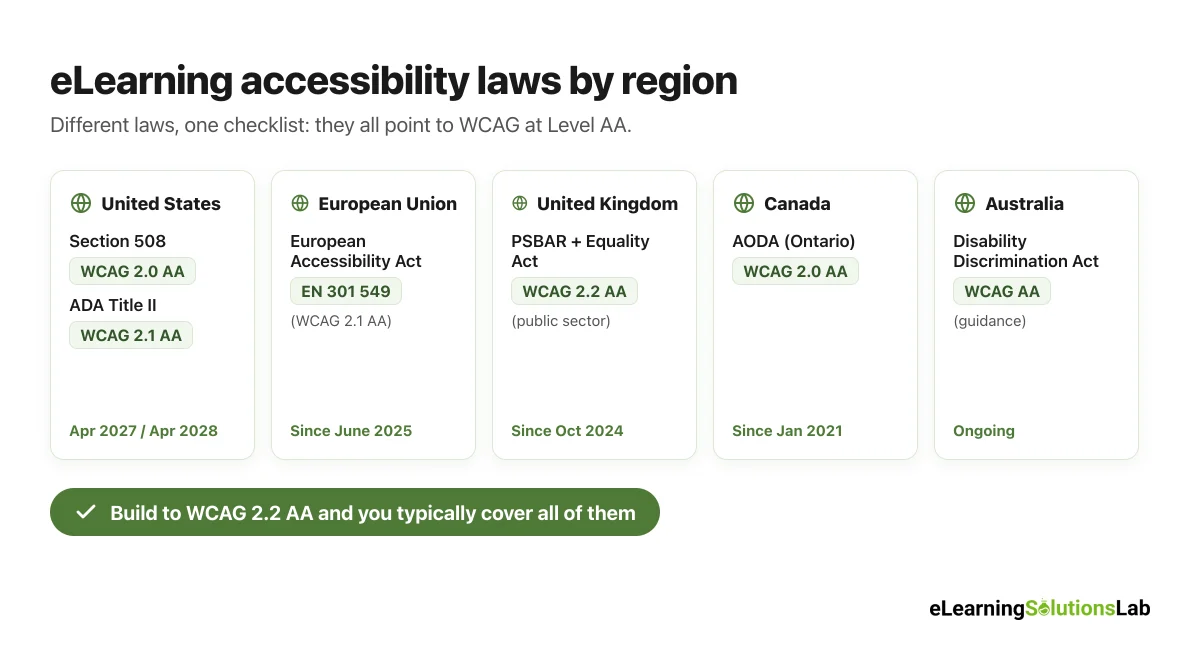
The checklist is the same everywhere. But the law behind it isn’t. So before you start, it helps to know which standard your organization, your clients or your learners are actually held to.
| Region | Law or rule | Who it typically covers | Technical standard | Key dates |
|---|---|---|---|---|
| United States (federal) | Section 508 of the Rehabilitation Act | Federal agencies and the training and tech they build or buy | WCAG 2.0 AA | In force since 2018 (refreshed standards) |
| United States (state and local) | ADA Title II web and mobile rule (2024) | State and local governments, public colleges and universities, public schools | WCAG 2.1 AA | April 26, 2027 (population 50,000+), April 26, 2028 (smaller), after the DOJ’s April 2026 extension |
| United States (private) | ADA Title III (and Title I for employees) | Businesses open to the public, and employers making reasonable accommodations | No fixed standard in the rule. WCAG 2.1 or 2.2 AA is the usual benchmark | Ongoing. Web accessibility lawsuits keep rising |
| European Union | European Accessibility Act (EAA) and the Web Accessibility Directive | EAA: many digital products and services sold to consumers, including e-commerce and e-books (micro-enterprises are exempt for services). Directive: public sector websites and apps | EN 301 549 (WCAG 2.1 AA for web content) | EAA applies since June 28, 2025 |
| United Kingdom | Equality Act 2010 and the Public Sector Bodies Accessibility Regulations 2018 (PSBAR) | Equality Act: employers and service providers. PSBAR: public sector bodies | WCAG 2.2 AA for the public sector | Public sector monitored against WCAG 2.2 since October 2024 |
| Canada | AODA (Ontario) and the Accessible Canada Act (federal) | AODA: Ontario public sector and organizations with 50+ employees. ACA: federally regulated organizations | WCAG 2.0 AA (AODA) | AODA web requirements in force since January 1, 2021 |
| Australia | Disability Discrimination Act 1992 (DDA) | Anyone providing goods, services or education, including online | No fixed standard in the Act. Guidance points to WCAG AA | Ongoing |
What this means in practice: WCAG 2.2 AA includes everything in 2.0 and 2.1. So if you build to WCAG 2.2 AA, you typically cover Section 508, ADA Title II, EN 301 549, AODA and the UK public sector rules in one go. That’s why every check below is mapped to WCAG 2.2, and we’ve marked the ones added in 2.1 and 2.2 so you can see where older standards stop.
This section is a plain-language overview, not legal advice. If you’re unsure which rules apply to you, check with your legal or compliance team. For more on how regulations shape course design, see our guide to eLearning compliance training.
The eLearning Accessibility Checklist (WCAG 2.2 AA)
Here’s the full checklist, grouped into 11 areas. Each table has four columns:
- Check – what to look for.
- How to check / fix – a quick test and the usual fix.
- WCAG – the success criterion and level. “(2.1)” means it was added in WCAG 2.1, so it isn’t in Section 508 or AODA. “(new in 2.2)” means it’s only in WCAG 2.2.
- Fix where – Template means you can fix it once in your course template, theme or player. Every screen means you have to check it slide by slide. Both means set it up in the template, then spot-check screens.
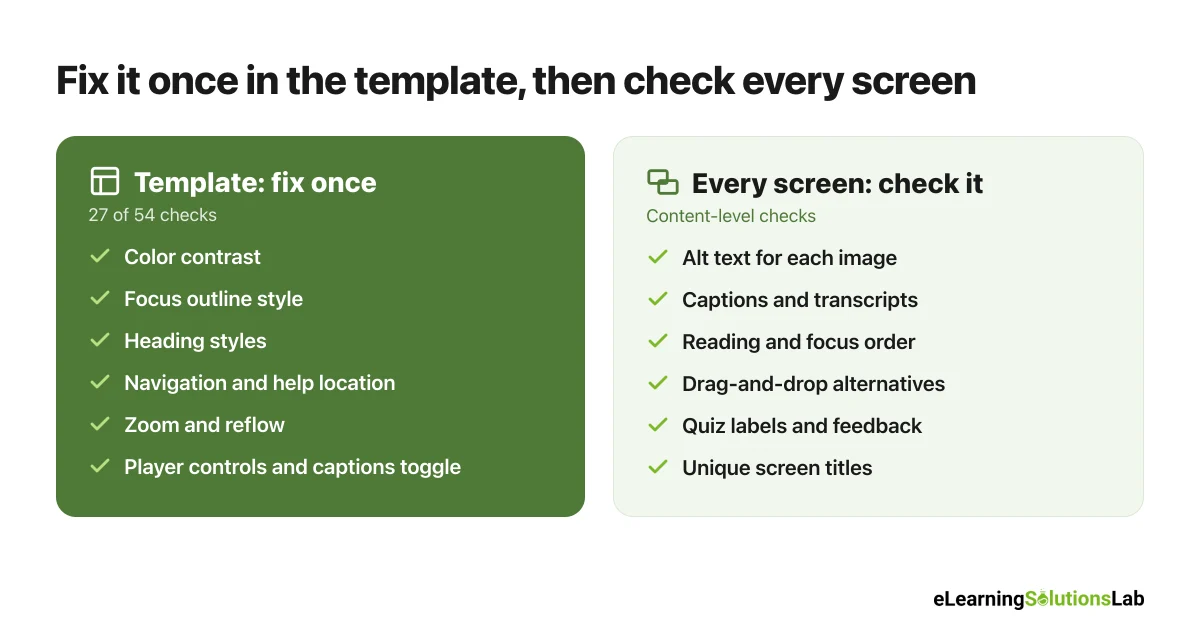
Fix it in the template first. 27 of the 54 checks can be solved, or mostly solved, at template or player level: contrast, focus styles, heading styles, navigation, zoom and reflow. Get those right once and every course built from that template starts in a much better place. Then your screen-by-screen review only has to cover content: alt text, captions, reading order and interactions.
1. Structure and Headings
| Check | How to check / fix | WCAG | Fix where |
|---|---|---|---|
| Each screen or page has a clear, unique title | Read the slide or page title list. Rename “Slide 4” style titles so they say what the screen is about. | 2.4.2 A | Every screen |
| Headings are real headings, in order | Use heading styles (H1, H2, H3), not just big bold text. Don't skip levels. | 1.3.1 A | Template |
| Reading order matches the visual order | Check the focus or reading order panel in your authoring tool. Fix layers that read out of order. | 1.3.2 A | Every screen |
| Course language is set | Set the course and player language (for example, English or French) so screen readers pronounce text correctly. | 3.1.1 A | Template |
| Instructions don't rely on shape, color or position only | Rewrite “click the green button on the right” to name the button, for example “Select Next”. | 1.3.3 A | Every screen |
2. Images and Alt Text
| Check | How to check / fix | WCAG | Fix where |
|---|---|---|---|
| Every meaningful image has alt text | Write what the image means in this context, not what it looks like. Keep it short. | 1.1.1 A | Every screen |
| Decorative images are hidden from screen readers | Mark backgrounds, borders and stock decoration as decorative or hidden from accessibility tools. | 1.1.1 A | Template |
| Charts, diagrams and infographics have a full text version | Add the key data or steps in on-screen text, a notes panel or a linked description. | 1.1.1 A | Every screen |
| No images of text (except logos) | Replace text baked into images with live text, so it can be resized, read aloud and translated. | 1.4.5 AA | Both |
3. Color and Contrast
| Check | How to check / fix | WCAG | Fix where |
|---|---|---|---|
| Body text contrast is at least 4.5:1 | Test text and background colors with a contrast checker. Large text (24px, or 18.5px bold) needs 3:1. | 1.4.3 AA | Template |
| Buttons, icons and focus outlines contrast at least 3:1 | Check the edges of buttons, form fields, icons and the focus indicator against what's next to them. | 1.4.11 AA (2.1) | Template |
| Color is never the only signal | Add an icon, text or pattern to right/wrong feedback, required fields and chart lines. | 1.4.1 A | Every screen |
| Text over images or video stays readable | Add a solid or semi-transparent panel behind text placed on photos. | 1.4.3 AA | Every screen |
4. Text and Readability
| Check | How to check / fix | WCAG | Fix where |
|---|---|---|---|
| Text can be zoomed to 200% without losing content | Zoom the browser or use the player's zoom. Nothing should be cut off or overlap. | 1.4.4 AA | Template |
| Content reflows on a phone-sized screen | View at 320px wide. Learners shouldn't have to scroll sideways to read. | 1.4.10 AA (2.1) | Template |
| Text still works with extra line and letter spacing | Test with a text-spacing bookmarklet. Fixed-height text boxes are the usual problem. | 1.4.12 AA (2.1) | Template |
| Link and button text makes sense on its own | Replace “Click here” with “Download the checklist (PDF)”. | 2.4.4 A | Every screen |
| Plain language and short chunks | Short sentences, common words, one idea per screen. Explain acronyms the first time. | Best practice | Every screen |
5. Audio and Video
| Check | How to check / fix | WCAG | Fix where |
|---|---|---|---|
| All video with speech has accurate captions | Use closed captions you can turn on and off. Edit auto-captions for names, terms and punctuation. | 1.2.2 A | Every screen |
| Audio-only content has a transcript | Provide a transcript for podcasts, narration-only screens and audio clips. | 1.2.1 A | Every screen |
| Important visual information is described | If the video shows something the narration doesn't say, add audio description or narrate it in the script. | 1.2.5 AA | Every screen |
| Live sessions have live captions | Turn on captions in Teams, Zoom or your VILT tool, or book a captioner for high-stakes sessions. | 1.2.4 AA | Every screen |
| No audio plays automatically for more than 3 seconds without a control | Give learners a pause, stop or mute control, or don't autoplay. | 1.4.2 A | Template |
6. Keyboard and Focus
| Check | How to check / fix | WCAG | Fix where |
|---|---|---|---|
| Everything works with a keyboard only | Unplug the mouse. Use Tab, Shift+Tab, Enter, Space and arrow keys to finish the whole course. | 2.1.1 A | Both |
| No keyboard traps | Make sure focus can always move out of pop-ups, layers, video players and embedded content. | 2.1.2 A | Every screen |
| Focus is always visible | You should see a clear outline on whatever has focus at every step. | 2.4.7 AA | Template |
| Focused items aren't hidden behind other content | Check sticky headers, player bars and pop-ups don't cover the focused element. | 2.4.11 AA (new in 2.2) | Template |
| Focus order is logical | Tab order should follow the reading order, not the order objects were added. | 2.4.3 A | Every screen |
| Single-key shortcuts can be turned off or changed | If your player uses single-letter shortcuts, let learners disable or remap them. | 2.1.4 A (2.1) | Template |
7. Interactions and Quizzes
| Check | How to check / fix | WCAG | Fix where |
|---|---|---|---|
| Drag-and-drop has a non-dragging alternative | Offer click-to-select, a dropdown or a multiple-choice version of the same activity. | 2.5.7 AA (new in 2.2) | Every screen |
| Click targets are at least 24 × 24 px | Check small hotspots, radio buttons, close icons and markers. Add space between small targets. | 2.5.8 AA (new in 2.2) | Template |
| Every question and field has a clear label and instructions | Say how to answer (“Select two”) and label form fields in text, not just placeholders. | 3.3.2 A | Every screen |
| Errors are named and explained in text | Tell learners what's wrong and how to fix it, not just a red outline. | 3.3.1 A / 3.3.3 AA | Every screen |
| Feedback is announced to screen readers | Make sure correct/incorrect feedback and score messages are read out, not only shown. | 4.1.3 AA (2.1) | Both |
| Time limits can be turned off, adjusted or extended | Avoid timed quizzes, or let learners extend the time. Warn them before time runs out. | 2.2.1 A | Every screen |
| Custom controls expose their name, role and state | Test custom buttons, toggles and sliders with a screen reader. It should say what each one is and whether it's selected. | 4.1.2 A | Both |
| Learners don't have to re-enter the same answer twice | Auto-fill or let learners select information they've already given in the same process. | 3.3.7 A (new in 2.2) | Every screen |
8. Navigation and Player Controls
| Check | How to check / fix | WCAG | Fix where |
|---|---|---|---|
| Navigation is in the same place on every screen | Keep Next, Back, Menu and Resources in a fixed location and order. | 3.2.3 AA | Template |
| Help is in the same place on every screen | If you offer help, a glossary or contact info, keep it in a consistent spot. | 3.2.6 A (new in 2.2) | Template |
| Learners can skip repeated content | Provide a way to skip menus or the player bar and go straight to the content. | 2.4.1 A | Template |
| Nothing changes unexpectedly on focus or input | Moving to a field or choosing an option shouldn't jump to a new slide on its own. | 3.2.1 / 3.2.2 A | Every screen |
| Auto-advancing content can be paused | If slides advance with the audio, give a pause and replay control. | 2.2.2 A | Template |
9. Motion and Flashing
| Check | How to check / fix | WCAG | Fix where |
|---|---|---|---|
| Nothing flashes more than 3 times per second | Check animations, video and transitions. Remove strobing effects. | 2.3.1 A | Every screen |
| Moving or looping content can be paused | Carousels, animated backgrounds and looping GIFs over 5 seconds need a pause control. | 2.2.2 A | Every screen |
| Animations are short and not needed to understand content | Keep entrance animations subtle. Respect reduced-motion settings where your tool allows it. | Best practice (2.3.3 AAA) | Template |
10. Documents and Attachments
| Check | How to check / fix | WCAG | Fix where |
|---|---|---|---|
| PDFs and Word handouts are tagged and structured | Use real headings, lists and table headers. Export as a tagged PDF and run the built-in accessibility checker. | 1.3.1 A | Every screen |
| Document images have alt text | Add alt text in Word or PowerPoint before you export. | 1.1.1 A | Every screen |
| Downloads are labeled with file type and size | For instance, “Job aid (PDF, 200 KB)”. | 2.4.4 A | Every screen |
| Slide decks used as resources have unique slide titles and reading order | Use the PowerPoint accessibility checker and the Selection Pane to fix order. | 2.4.2 / 1.3.2 A | Every screen |
11. LMS and SCORM Player
| Check | How to check / fix | WCAG | Fix where |
|---|---|---|---|
| The LMS login doesn't depend on a memory or puzzle test | Allow password managers and paste, and avoid CAPTCHAs without an alternative. | 3.3.8 AA (new in 2.2) | Template |
| The course works in both portrait and landscape | Don't lock orientation on phones and tablets. | 1.3.4 AA (2.1) | Template |
| The LMS and course player are tested together | Launch the course inside the real LMS. Pop-up windows, iframes and frames can break keyboard and screen reader use. | Multiple | Template |
| Your vendors have an up-to-date ACR / VPAT | Ask your LMS and authoring tool vendors for an Accessibility Conformance Report against WCAG 2.2 and EN 301 549. | Procurement | Template |
| Learners know how to ask for an accessible alternative | Add an accessibility statement and contact to the course or LMS home page. | Best practice | Template |
What’s New in WCAG 2.2 for eLearning
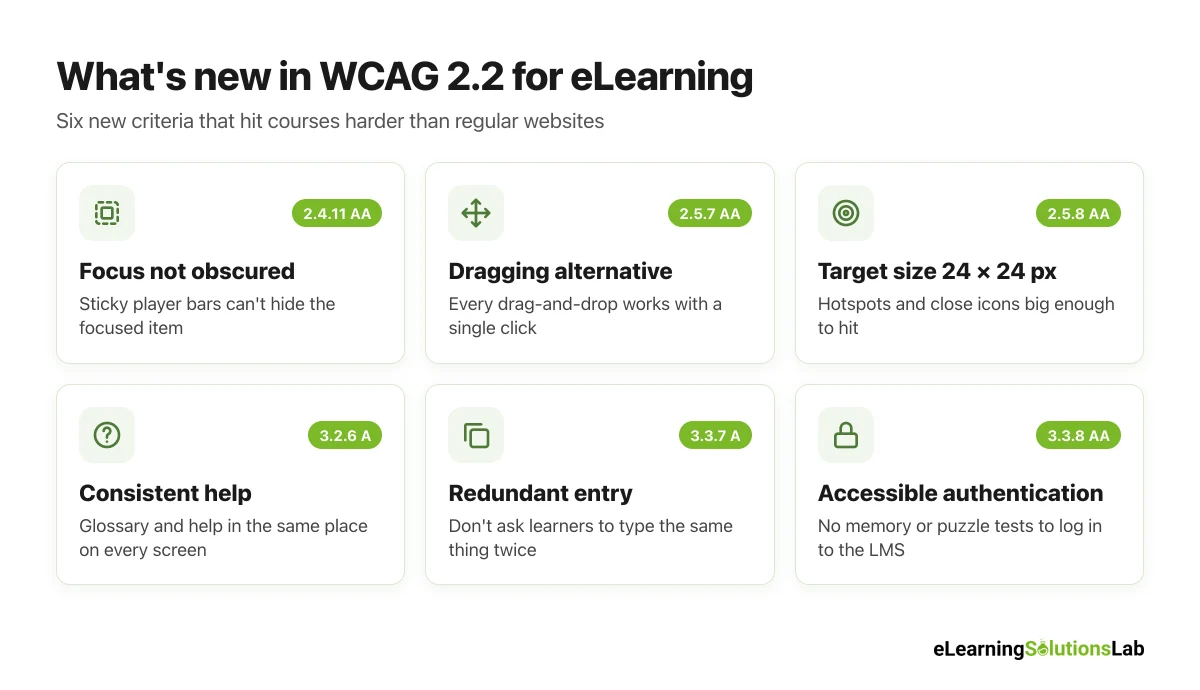
WCAG 2.2 became a W3C Recommendation in October 2023, and most top-ranking checklists still stop at 2.1. But several of the new criteria really hit eLearning harder than regular websites, given that courses are full of drag-and-drop, small hotspots and sticky player bars.
| New criterion | What it asks for | Where it shows up in eLearning |
|---|---|---|
| 2.4.11 Focus Not Obscured (AA) | The focused item isn’t fully hidden by other content | Sticky player bars, sidebars, pop-up layers and cookie banners in the LMS |
| 2.5.7 Dragging Movements (AA) | Anything you can drag can also be done with a single click or tap | Drag-and-drop quizzes, sorting and matching activities, sliders |
| 2.5.8 Target Size (Minimum) (AA) | Click targets are at least 24 × 24 CSS pixels, or have enough space around them | Hotspots on images, small “x” close icons, radio buttons, tab markers |
| 3.2.6 Consistent Help (A) | Help options appear in the same place on every page | Glossary, resources and “contact your trainer” buttons in the player |
| 3.3.7 Redundant Entry (A) | Don’t make people type the same information twice in one process | Registration forms, reflection activities, multi-step assessments |
| 3.3.8 Accessible Authentication (AA) | Logging in doesn’t require a memory or puzzle test without an alternative | LMS login pages, CAPTCHAs, blocked paste in password fields |
WCAG 2.2 also removed 4.1.1 Parsing, so you don’t have to test for it anymore. For a deeper look at each change with examples, see the WCAG 2.2 section of our accessible eLearning guide.
How to Test an eLearning Course for Accessibility
Automated checkers are useful, but they typically only catch a portion of real issues, often estimated at around a third. They can’t tell you whether alt text actually makes sense or whether a drag-and-drop can be finished without a mouse. So a good test combines four passes.
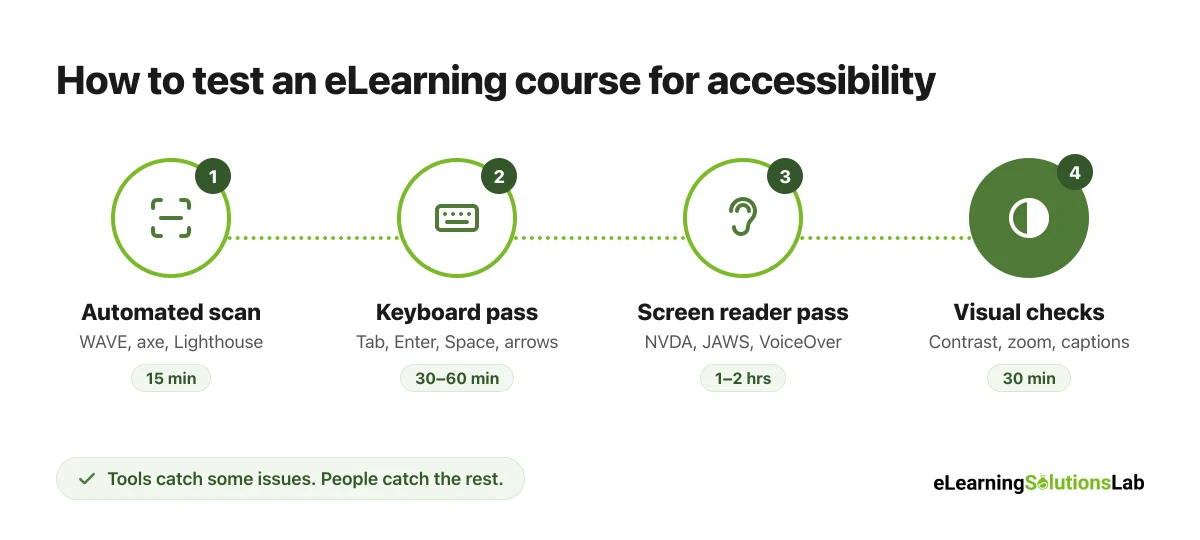
1. Automated scan (15 minutes)
Run a free browser checker such as WAVE, axe DevTools or Lighthouse on the published course, ideally launched from your LMS. It’ll flag missing alt text, low contrast and missing labels fast. Treat the results as a to-do list, not a pass mark.
2. Keyboard-only pass (30 to 60 minutes)
Put your mouse away and go through the course with Tab, Shift+Tab, Enter, Space and the arrow keys. You have to be able to reach every button, finish every interaction and quiz, and always see where focus is. In our experience, this one test finds more real problems than any tool.
3. Screen reader pass (1 to 2 hours)
Use NVDA (free, Windows), JAWS (Windows) or VoiceOver (built into Mac and iPhone). Listen for whether each screen makes sense without seeing it: are images described, are buttons named, is feedback read out, does the reading order follow the content? You don’t need to be an expert. Even a basic pass genuinely shows you what a blind learner experiences.
4. Visual and media checks (30 minutes)
Check color contrast with a tool such as the Colour Contrast Analyser or WebAIM’s contrast checker. Zoom to 200%, view the course on a phone, and play every video with captions on and sound off. Then write down what you tested and what you fixed, so that you have a record for audits and clients.
Who should test? Your developers and instructional designers can do passes 1, 2 and 4. For high-stakes or public sector courses, it’s really worth having at least one round of testing with people who use assistive technology every day.
Notes for Storyline, Rise, Captivate and Your LMS
Most authoring tools can produce accessible courses. But none of them make a course accessible on their own. Here’s where to look in each one.
Articulate Storyline 360
- Use the Focus Order panel on every slide to set reading and tab order, and hide decorative objects from accessibility tools.
- Add alt text in each object’s Accessibility settings, and check your player’s color scheme for contrast.
- Add closed captions to video and narration, and build a click-based alternative for drag-and-drop slides.
- Check that custom states (hover, selected, visited) still meet contrast and show a visible focus outline.
Articulate Rise 360
- Rise handles a lot of structure and responsiveness for you, so it’s a good starting point.
- You still have to add alt text, pick an accessible theme color, caption videos and check any embedded Storyline blocks separately.
- Use the built-in heading and list blocks rather than styling paragraphs to look like headings.
Adobe Captivate
- Set accessibility text and tab order for each object, and mark decorative items so screen readers skip them.
- Add closed captions to slides with audio, and check that the playbar and table of contents are reachable by keyboard.
- Test responsive layouts at phone width for reflow and target size.
Your LMS and SCORM player
- Always test the course inside the LMS. Pop-up windows, iframes and LMS menus can break keyboard and screen reader use even when the course itself passes.
- Ask your LMS vendor for a current Accessibility Conformance Report (ACR/VPAT) and check which WCAG version it covers.
- Check the login page against WCAG 2.2’s accessible authentication rule.
Learnwick LMS · Free plan
Try Learnwick LMS Free
Create a workspace, add your logo, invite your team by email, CSV or a sign-up link, and assign your first course in an afternoon. Start with a ready-made course or let Ember turn one of your documents into a course.
- Free for up to 30 learners, with every feature and no time limit
- No credit card and no setup fee
- Or book a free 30-minute demo and see it with your own training
For more on packaging and players, see our guide to SCORM compliance requirements, and our comparison of the best eLearning authoring tools.
To give you a concrete example, at eLearning Solutions Lab, we don’t simply run a checker at the end of a project. We build accessibility into the storyboard and the template first: alt text and caption notes go into the script, every interaction gets a keyboard path before it’s built, and the template is tested once so that each new screen starts from an accessible base.
Free eLearning Accessibility Checklist (PDF)
Free download – no email needed
eLearning Accessibility Checklist (WCAG 2.2 AA)
All 54 checks from this page in a printable PDF, with tick boxes, the WCAG criterion for each item and a “Template / Every screen” column, so you can use it in your next course review or hand it to your development team.
In one line: build to WCAG 2.2 AA, fix contrast, focus, headings and navigation once in your template, then check alt text, captions, reading order and interactions on every screen, and test with a keyboard and a screen reader before launch.
Need courses that pass an accessibility audit the first time?
At eLearning Solutions Lab, we build accessibility into the template, the storyboard and every interaction, then test with keyboard and screen readers before launch.
Our custom eLearning development services build WCAG 2.2 AA courses from scratch, and our legacy content conversion team can bring older courses up to standard.
Explore custom eLearning developmentTalk to us about an accessibility review
Related Reading
- Accessible eLearning – the full guide to POUR, WCAG 2.2 and Universal Design for Learning.
- eLearning storyboard template – plan alt text, captions and keyboard paths before you build.
- SCORM compliance requirements – what your course package and LMS need to support.
- Best eLearning authoring tools – how Storyline, Rise, Captivate and others compare.
- Video-based eLearning – planning video with captions and transcripts in mind.
- eLearning development best practices – QA and review habits that catch issues early.
The Author

Book A Discovery Call
Our Learning Advisors are happy to walk you through your project step-by-step — content, timeline, and fixed pricing.
Get Your Free QuoteNo obligation — just a focused conversation. Proposal within 24 hours.
You may also like
What is a Learning Experience Designer? Role, Skills, Salary and How to Become One (2026)
If you've seen "learning experience designer" on a job board and wondered…
What is VILT? A Practical Guide to Virtual Instructor-Led Training
VILT sounds like a simple acronym. But search for it and you'll get an IT…